
When it comes to home internet, the Verizon router plays a crucial role in delivering fast speeds, strong Wi-Fi coverage, and secure connectivity across all your devices. Whether you’re using Verizon Fios, Verizon 5G Home Internet, or LTE Internet, your Verizon router is the heart of your network. This comprehensive guide will walk you through everything you need to know—from what a Verizon router is and how it works, to how it compares to other routers, and why choosing the right one can dramatically improve your online experience.
In this section, we will focus on what a Verizon router is, why it’s different from traditional routers, and how Verizon router technology ensures a reliable, high-speed internet connection in modern homes.
What Is a Verizon Router and How Does It Work?
A Verizon router is a network device provided by Verizon to help users connect to the internet using Verizon’s high-speed fiber-optic or wireless networks. Unlike standard off-the-shelf routers, a Verizon router is specially configured to work seamlessly with Verizon’s infrastructure, providing optimized speeds, minimal latency, and enhanced security.
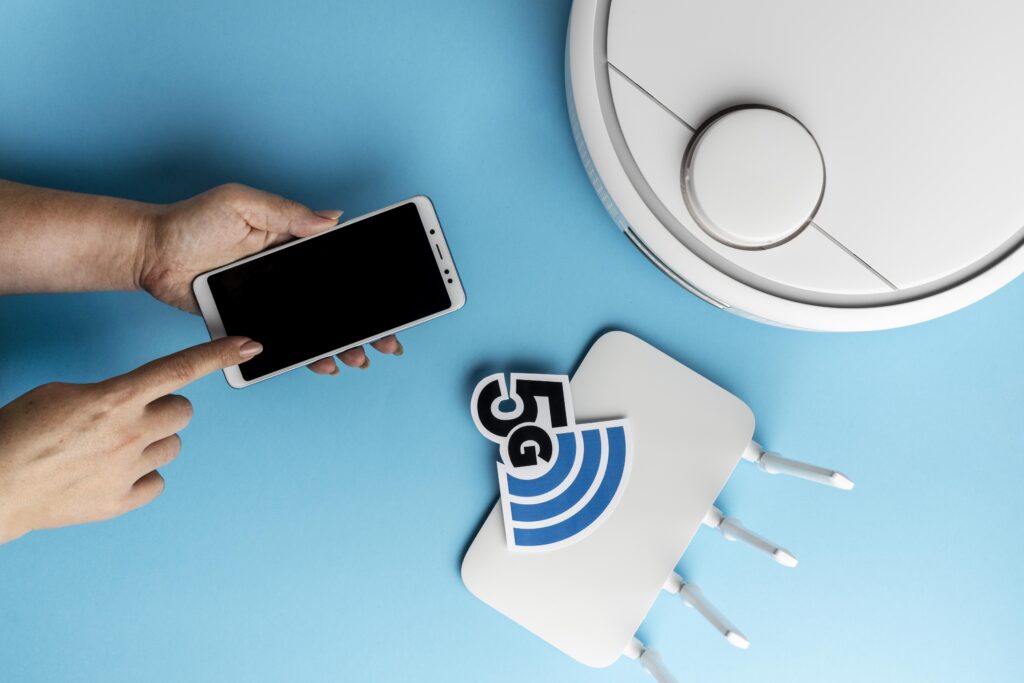
At its core, a Verizon router performs three main functions:
- Receives Internet Signal: From either a fiber-optic ONT (Optical Network Terminal), 5G receiver, or LTE modem.
- Distributes Connection to Devices: Through both wired Ethernet ports and wireless Wi-Fi.
- Manages Network Traffic: Ensuring each connected device receives a fast, stable connection without interference.
Here’s a simplified look at how the process works:
| Function | Description | Technology Used |
|---|---|---|
| Internet Input | Receives data from fiber or wireless signals | Fiber ONT / 5G Receiver |
| Routing & Processing | Encrypts, filters, and prioritizes data through built-in firmware | Firewall, QoS, NAT |
| Wi-Fi Transmission | Sends signals using multiple bands for better range and speed | Wi-Fi 6 / Dual-Band Mesh |
| Device Communication | Connects phones, TVs, laptops, smart devices to the internet | Wireless & Wired LAN |
Why Verizon Routers Are Different
Unlike generic routers that require manual setup and troubleshooting, Verizon routers are pre-configured for the Verizon network. This means:
- Automatic firmware updates
- Integrated Verizon support
- Enhanced compatibility with Verizon set-top boxes, streaming devices, and VoIP services
- Faster performance optimized for fiber
According to Verizon, users who upgrade to their newest Fios Verizon router (G3100) see up to 60% better Wi-Fi performance and significantly improved coverage in large homes.
Verizon Router vs Traditional Routers
| Feature | Verizon Router | Traditional Router |
|---|---|---|
| Network Compatibility | Optimized for Verizon Fios & 5G | May require manual configuration |
| Firmware Updates | Automatic via Verizon Network | User must update manually |
| Wi-Fi Technology | Wi-Fi 6, Tri-band, Mesh Ready | Varies depending on model |
| Setup Process | Plug-and-play with Verizon activation | Often requires manual DNS & IP setup |
| Customer Support | Direct Verizon tech support | Manufacturer-only support |
Key takeaway: If you are a Verizon customer, using a Verizon router ensures you get the fastest speeds and the most stable connection possible with minimal setup complexity.
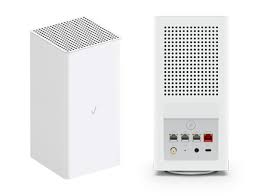
Types of Verizon Routers
Verizon offers several router options designed for different internet plans and use cases:
- Verizon Fios Router (G3100) – Best for fiber internet users who want gigabit speeds and Wi-Fi 6.
- Verizon 5G Home Internet Router – Designed for users in 5G coverage areas, offering ultra-fast wireless internet.
- Verizon LTE Home Router – Ideal for rural areas where LTE is the primary option.
Popular Verizon Router Features
- Next-gen Wi-Fi 6 technology
- MU-MIMO for multi-device streaming
- Tri-band wireless capability
- Built-in security protocols
- Easy Verizon router login panel to manage settings
Why Choosing the Right Verizon Router Matters
Choosing the correct Verizon router can:
- Eliminate buffering while streaming
- Reduce latency for gaming
- Improve work-from-home video call quality
- Extend Wi-Fi coverage to every room
- Protect your devices with top-tier security
“Upgrading your Verizon router can boost Wi-Fi speed by up to 60% and expand coverage by 40%.” – Verizon Internal Data
Whether you’re a casual internet user or a power user with dozens of connected devices, selecting the right Verizon router can dramatically improve your online experience.
Verizon Router Models Explained
Choosing the right Verizon router model is crucial to getting the best performance, Wi-Fi coverage, and compatibility with Verizon’s network services. Over the years, Verizon has released several router models, each designed to support different internet technologies such as Verizon Fios fiber, 5G Home Internet, and LTE Home Internet. In this section, we will explore the most popular Verizon router models, their features, performance metrics, and how they compare.
Verizon Fios Router (G3100) Overview
The Verizon Fios G3100 router is one of the most advanced routers available for fiber users. It’s designed to support gigabit speeds, Wi-Fi 6 technology, and mesh network capability, making it ideal for large households with multiple smart devices.
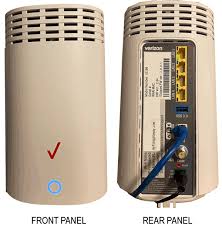
Key Features of the G3100 Router
- Wi-Fi 6 (802.11ax) supports faster speeds and improved efficiency.
- Tri-band technology for simultaneous 2.4 GHz and dual 5 GHz channels.
- Gigabit Ethernet ports for wired connections.
- Built-in IoT and mesh support for seamless device connectivity.
- Advanced firewall and parental controls.
| Feature | Verizon Fios G3100 Router |
|---|---|
| Wi-Fi Standard | Wi-Fi 6 (802.11ax) |
| Bands | 1 x 2.4GHz, 2 x 5GHz (Tri-Band) |
| Max Speed | Up to 940 Mbps |
| Best For | Fiber 1 Gig, Multiple Devices |
| Mesh Compatible | Yes |
| Ideal Home Size | Medium to Large Homes |
Why Choose the Fios G3100:
This router is perfect if you have fiber internet and want maximum speed, future-proof technology, and whole-home coverage.
Verizon CR1000A Router (Newest Model)
The CR1000A Verizon router is Verizon’s latest flagship model, offering better speed, more memory, and superior Wi-Fi performance. It’s optimized for multi-gig internet services and is ideal for tech-heavy homes.
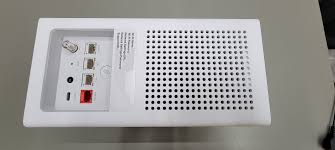
CR1000A Top Features
- Wi-Fi 6E support – provides an additional 6GHz band for ultra-fast connections.
- Multi-gig Ethernet ports capable of speeds over 1 Gbps.
- Enhanced chipset for gaming, 4K streaming, and smart devices.
- Improved thermal design for continuous high-speed performance.
| Feature | Verizon CR1000A Router |
|---|---|
| Wi-Fi Standard | Wi-Fi 6E |
| Bands | 2.4GHz, 5GHz, 6GHz (Tri-Band) |
| Max Speed | 2 Gbps+ |
| Best For | Multi-Gig Plans, Smart Homes |
| Mesh Compatible | Yes |
| Ideal Home Size | Large Homes / Offices |
Why Choose CR1000A:
This is the best Verizon router currently available for future-proofing your network. If you stream 4K content, game competitively, or run a home office with multiple users, this router delivers the best performance.
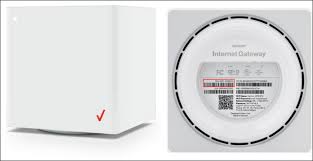
Verizon 5G Home Internet Router
The Verizon 5G Home Router is designed for users who rely on Verizon’s 5G wireless network as their primary internet service—especially in areas where fiber isn’t available.
Key Features of the Verizon 5G Router
- Ultra-fast 5G connectivity with speeds up to 1 Gbps.
- Plug-and-play installation – no technician required.
- Wi-Fi 6 support for higher device capacity.
- Optimized antenna design for maximum signal strength.
| Feature | Verizon 5G Router |
|---|---|
| Internet Type | 5G Wireless |
| Max Speed | 300 Mbps – 1 Gbps |
| Installation | Self-Install |
| Best For | Cord-cutters, Renters, Mobile Homes |
| Ports | Limited (Wireless Focused) |
Why Choose Verizon 5G Router:
Perfect for people who need fast wireless internet without cables or fiber, especially in urban and suburban areas with strong 5G coverage.
Verizon LTE Home Router
For rural or remote areas not yet covered by fiber or 5G, Verizon offers the LTE Home Router.
LTE Router Highlights
- Uses 4G LTE signals for internet connectivity.
- Provides speeds between 25 – 100 Mbps.
- Reliable network fallback option.
- Ideal for basic streaming, browsing, and work-from-home setups.
| Feature | Verizon LTE Router |
|---|---|
| Internet Type | 4G LTE |
| Max Speed | Up to 100 Mbps |
| Best For | Rural Areas |
| Installation | Plug-and-Play |
| Coverage | Wide Reach, Lower Speed |
Differences Between Old and New Verizon Routers
| Feature | Older Routers (Quantum, G1100) | New Verizon Routers (G3100, CR1000A) |
|---|---|---|
| Wi-Fi Version | Wi-Fi 4 or 5 | Wi-Fi 6 and 6E |
| Max Speed | Up to 300–500 Mbps | Up to 2 Gbps |
| Mesh Compatibility | Limited | Fully Mesh-Ready |
| Number of Devices | Supports fewer simultaneous connections | Optimized for 30+ devices |
| Future-Proofing | No | Yes |
Pro Tip: If you’re still using an older Verizon router such as the G1100, upgrading to the G3100 or CR1000A could improve your speeds by up to 70% and fix Wi-Fi dead zones.
Which Verizon Router Is Best for Your Needs?
| Internet Type | Recommended Router | Why It’s Best |
|---|---|---|
| Verizon Fios | G3100 or CR1000A | Fastest speeds, mesh-ready, supports Wi-Fi 6/6E |
| Verizon 5G Home | 5G Router | No cable required, perfect for 5G coverage areas |
| Verizon LTE | LTE Home Router | Best option for rural locations |
| Gaming/Streaming | CR1000A | Handles multi-gig speeds, ultra-low latency |
| Budget Users | Older Fios G1100 | Still functional, but not future-proof |
Final Recommendation:
For most users with fiber internet, the Verizon Fios Router G3100 offers the best balance of speed, cost, and reliability. If you want the fastest and most advanced model, go with the CR1000A.
How to Set Up a Verizon Router (Step-by-Step Guide)
Setting up your Verizon router correctly is crucial for achieving optimal speed, signal strength, and network security. Whether you’re activating a new Verizon Fios router, 5G Home Internet router, or LTE model, this step-by-step section will walk you through the full installation process in a simple, clear way. By the end, you’ll have a fully functioning Wi-Fi network optimized for performance.
Verizon Router Installation Requirements
Before you begin, ensure you have the following:
What You Need
- ✅ Verizon router (G3100, CR1000A, 5G Home, or LTE router)
- ✅ Power adapter
- ✅ Ethernet cable (usually included)
- ✅ Coaxial cable (for some older Fios setups)
- ✅ Fiber ONT (Optical Network Terminal) installed (for Fios users)
- ✅ Verizon account login details
Optional (But Recommended)
- 🔒 A strong Wi-Fi password ready
- 📱 Verizon My Fios App downloaded for easier setup
- 🧭 A central location in your home for best signal coverage
Tip: Place your Verizon router on an elevated surface away from walls, metal objects, and electronic interference such as microwaves.
How to Connect Your Verizon Router to ONT or Modem
The connection method depends on the type of Verizon service you have.
For Verizon Fios (Fiber Internet Users)
- Connect the Ethernet cable from the ONT to the router’s WAN port (usually labeled “Internet”).
- Plug in the power cable and turn on the router.
- Wait for the white LED light to become solid (may take up to 5 minutes).
For Verizon 5G Home Internet
- Place the router near a window with strong 5G signal.
- Plug in the power cable and turn it on.
- The router will automatically search for the strongest signal tower.
For Verizon LTE Home Internet
- Insert the activated SIM card (if required).
- Connect the router to power.
- Wait for signal bars to appear (green or blue indicates strong connection).
| Service Type | Connection Cable | Setup Time | Additional Devices Needed |
|---|---|---|---|
| Fios Fiber | Ethernet or Coax | 5–10 mins | ONT |
| 5G Home | Wireless 5G connection | 5 mins | None |
| LTE Home | Wireless LTE signal | 5 mins | SIM card (pre-installed) |
Verizon Router Activation Process
Once connected, you need to activate your router:
Method 1: Automatic Activation
- Turn on the router and wait.
- The router will automatically connect to Verizon servers.
- Lights will turn solid white (Fios) or blue/green (5G/LTE).
Method 2: Using Your Browser
- Open a browser on any connected device.
- Go to: https://activate.verizon.com
- Login with your Verizon account.
- Follow instructions to register your router.
“Most Verizon routers activate automatically within minutes. If it doesn’t connect in 15 minutes, try restarting the router or calling Verizon support.”
How to Access the Verizon Router Login Page (192.168.1.1)
You can manage your Verizon router settings by accessing its admin panel.
Step-by-Step Access Guide
- Connect your device to the Verizon router (via Wi-Fi or Ethernet).
- Open a web browser and type: http://192.168.1.1
- Alternatively, use mynetworksettings.com for newer routers.
- When prompted, enter the Verizon router admin login credentials.
- Default Username: admin
- Default Password: Located on router sticker (often called “Admin Password”)
| Router Model | Default IP | Default Username | Password Location |
|---|---|---|---|
| G3100 | 192.168.1.1 | admin | Label on back of router |
| CR1000A | mynetworksettings.com | admin | Sticker under router |
| 5G Router | 192.168.0.1 | admin | Printed on device bottom |
How to Change Your Verizon Router Wi-Fi Name and Password
Changing the default Wi-Fi settings improves security and personalizes your network.
Steps to Change Network Settings
- Log into the router admin dashboard.
- Go to Wireless Settings or Wi-Fi Settings.
- Change SSID (Wi-Fi Name) to something unique.
- Enter a strong Wi-Fi password (minimum 12 characters).
- Click Save.
Pro Tip: Use WPA3 security if available — it’s the strongest protection for your Verizon router.
Setting Up Guest Networks and Parental Controls
Benefits of Guest Network
- Keeps your main network secure.
- Prevents guests from accessing smart home devices.
How to Enable Guest Wi-Fi
- Go to Wi-Fi Settings → Guest Network.
- Toggle the feature ON.
- Set separate name and password.
Parental Controls (Great for Families)
- Block harmful websites
- Set time limits for devices
- Restrict app usage
“With Verizon’s built-in parental controls, you can manage your children’s screen time and block inappropriate content in minutes.”
🔔 Summary Checklist for Verizon Router Setup
| Task | Status |
|---|---|
| Router connected to ONT/modem | ✅ |
| Router activated | ✅ |
| Admin login accessed | ✅ |
| Wi-Fi name & password updated | ✅ |
| Security & guest networks set | ✅ |
Verizon Router Login and Admin Settings
Managing your Verizon router login and admin settings is essential for maintaining a secure, fast, and efficient Wi-Fi network. Whether you need to update your Wi-Fi password, enable advanced features like port forwarding, or improve security with a firewall, understanding these settings gives you full control over your home internet. In this section, we explore how to log in, modify settings, and troubleshoot access issues with your Verizon router.
Default Verizon Router Username and Password
Every Verizon router comes with factory-default admin credentials. These allow you to access the router’s dashboard and configure network settings. It’s highly recommended that you change these defaults during your initial setup to protect your network from unauthorized access.
| Router Model | Default Login IP | Default Username | Default Password Location |
|---|---|---|---|
| Verizon Fios G3100 | 192.168.1.1 | admin | Printed on router label |
| Verizon CR1000A | mynetworksettings.com | admin | Sticker on bottom |
| Verizon 5G Router | 192.168.0.1 | admin | Router back label |
| Older G1100 Model | 192.168.1.1 | admin | Included in setup kit |
Important: Always change your default admin password to prevent unauthorized access. Hackers often target routers with unchanged credentials.
How to Access Verizon Router Login Page (Step-by-Step)
- Connect your device (via Wi-Fi or Ethernet) to the Verizon router.
- Open a web browser (Chrome, Safari, Edge).
- In the address bar, enter one of the following:
- Enter your admin username and password.
- Click Sign In to access the dashboard.
If you can’t log in:
- Ensure you are connected to the correct Verizon router.
- Try another web browser.
- Check the router’s LED lights to confirm internet status.
How to Change Your Verizon Router Admin Password
Updating the admin password protects your network from unauthorized control.
Steps to Change the Admin Password
- Go to System Settings in the router dashboard.
- Click Change Admin Password.
- Enter your current password, then your new password.
- Click Save Changes.
Best Practices for Password Security
- Use a combination of letters, numbers, and special symbols.
- Avoid common names or easily guessed phrases.
- Store your password in a secure password manager.
“Routers with default admin credentials are 5 times more likely to be compromised,” according to cybersecurity reports.
Understanding Advanced Verizon Router Settings
Once logged in, you’ll notice several tabs or menu options. Below is a breakdown of what these do:
1. Firewall Settings
- Protects your network from malicious attacks.
- You can set different levels of security (Low, Medium, High).
- Recommendation: Keep firewall ON at all times.
2. Port Forwarding
Allows specific external devices (like gaming consoles or servers) to connect through your router.
Ideal for: Gaming, hosting servers, remote desktop access.
3. QoS (Quality of Service)
Prioritizes certain types of internet traffic.
- Example: Prioritize Zoom and online gaming over streaming updates.
4. MAC Filtering
Restricts which devices can access your network based on their unique MAC address.
5. Guest Network
Provides a separate access point for visitors without exposing your main network.
How to Update Verizon Router Firmware
Keeping your firmware updated ensures optimal performance, security, and compatibility.
Automatic Updates
Most Verizon routers automatically install firmware updates during off-peak hours.
Manual Firmware Update (If Needed)
- Log in to the router dashboard.
- Navigate to System > Firmware Update.
- Click Check for Updates.
- If an update is available, click Install.
Why Firmware Updates Matter:
- Improve Wi-Fi speed
- Fix security vulnerabilities
- Add new features
- Increase device compatibility
How to Reset Verizon Router Password or Factory Settings
If you’ve forgotten your admin password or Wi-Fi password:
Soft Reset (Recommended First)
- Use the admin panel to reset only the Wi-Fi credentials.
Hard Factory Reset
- Locate the Reset button (usually a small pinhole).
- Press and hold for 10-15 seconds using a paperclip.
- All settings will revert to default (including SSID and passwords).
⚠ Warning: A factory reset will remove all custom settings, including parental controls, guest networks, and firewall configurations.
Verizon Router Login Troubleshooting Checklist
| Issue | Possible Cause | Solution |
|---|---|---|
| Can’t access login page | Wrong IP address | Use router sticker for correct IP |
| Password not working | Default changed or forgotten | Perform password reset |
| Page not loading | Not connected to router | Connect via Ethernet and retry |
| Login locked out | Too many failed attempts | Wait 15 minutes or reboot router |
🔐 Final Thoughts on Verizon Router Admin Settings
Taking control of your Verizon router login and settings is one of the most effective ways to optimize performance and secure your home network. From protecting against cyber threats to improving device prioritization, the admin dashboard is your command center for a seamless internet experience.