
Meta Description (155–160 characters):
Discover everything about the Starlink router — setup, Wi-Fi range, mesh system, speed, and troubleshooting for the best satellite internet experience.
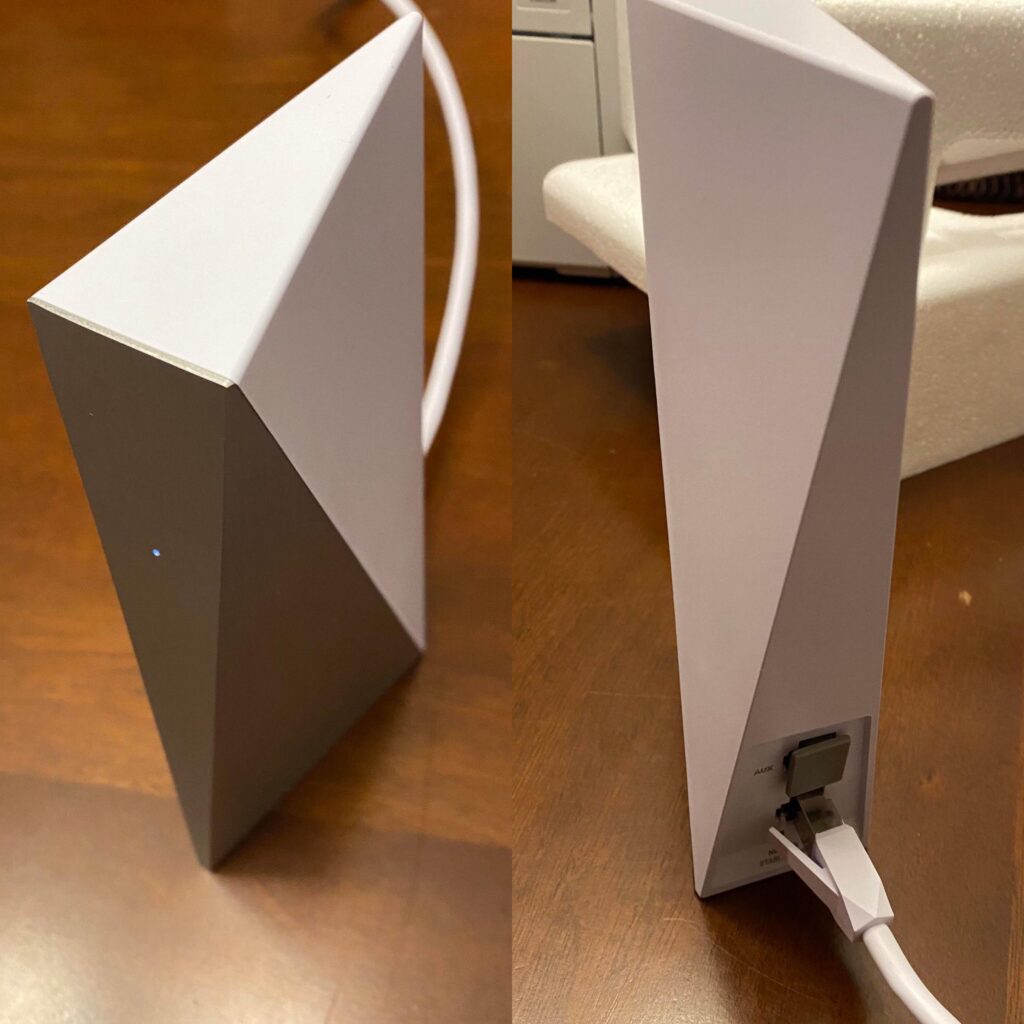
What Is the Starlink Router?
If you’ve ever struggled with slow rural internet, Starlink has likely caught your attention. Backed by SpaceX, Starlink is redefining how we connect to the web through low Earth orbit (LEO) satellites. At the heart of this system lies one essential device — the Starlink router — which distributes that satellite signal into a fast and reliable Wi-Fi network for your home or business.
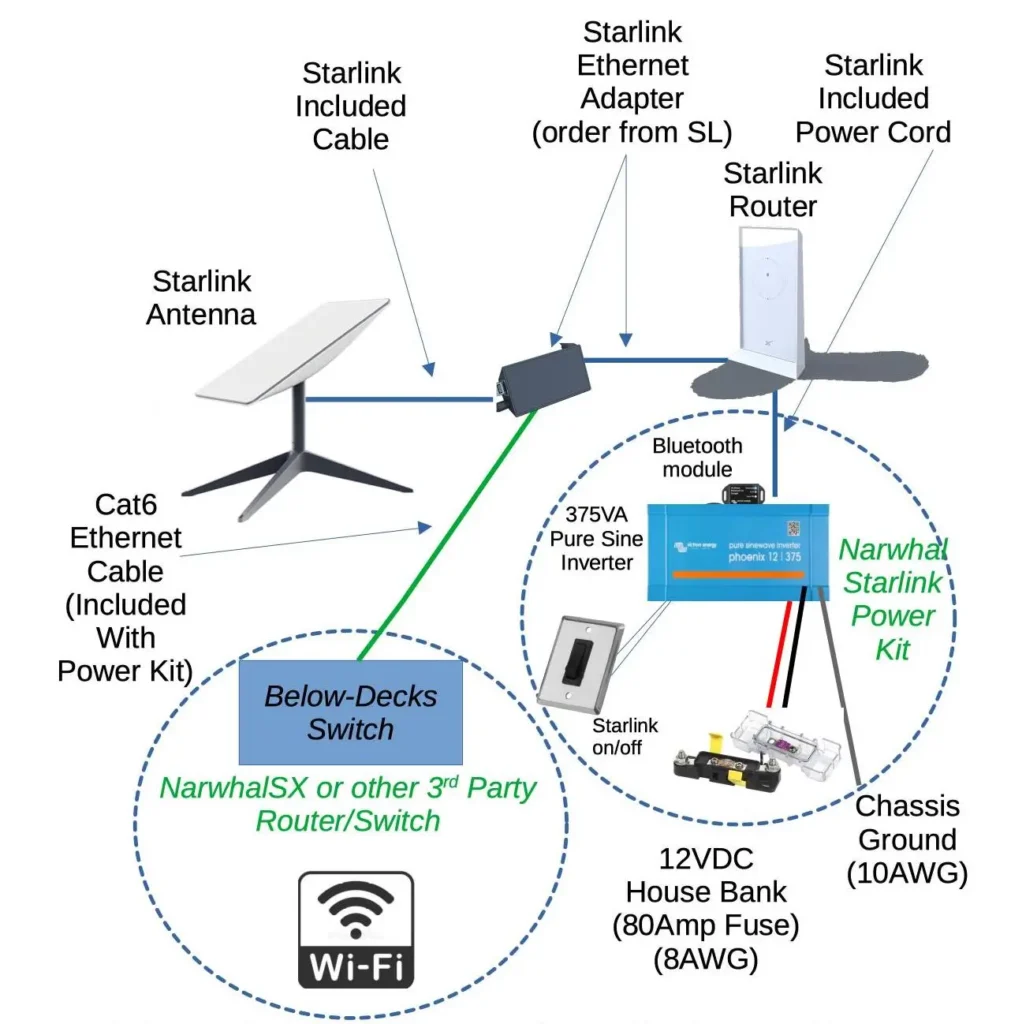
The Starlink router is included in every Starlink kit and serves as the hub that connects your devices (phones, computers, smart TVs, etc.) to the internet. It doesn’t rely on traditional fiber or DSL lines. Instead, it works hand-in-hand with your Starlink dish (also known as “Dishy”), which communicates with the orbiting satellites. The router then converts that signal into Wi-Fi that you can access throughout your space.
How the Starlink Router Fits Into the Starlink System
To understand how it works, here’s a simple breakdown of the Starlink system flow:
| Component | Function |
|---|---|
| Starlink Dish (“Dishy”) | Connects to Starlink satellites in orbit and receives internet signals. |
| Starlink Router | Translates satellite signals from the dish into a Wi-Fi network. |
| Power Supply Unit | Provides power to both the router and dish. |
| Starlink App | Allows you to set up, monitor, and manage your Starlink connection. |
Unlike most ISPs that send data through underground cables or fiber optics, Starlink bypasses traditional infrastructure by using thousands of satellites orbiting at around 550 km (340 miles) above Earth. This drastically reduces latency compared to older satellite internet systems.
Starlink Router Generations
Since its initial rollout in 2020, Starlink has released multiple router versions. Each one brings better performance, improved Wi-Fi range, and design enhancements.
| Version | Type | Wi-Fi Standard | Ethernet Port | Design |
|---|---|---|---|---|
| Gen 1 | Rectangular router with dish | Wi-Fi 5 (802.11ac) | Yes | Black rectangular design |
| Gen 2 | Round router with rectangular dish | Wi-Fi 5 | No (requires Ethernet adapter) | Sleek white circular design |
| Wi-Fi 6 Router (2024 update) | Newest router model | Wi-Fi 6 (802.11ax) | Yes | More powerful antennas, better range, and mesh support |
The new Wi-Fi 6 Starlink router offers stronger connections for homes with multiple devices. It also supports mesh networking, letting you extend coverage with additional Starlink nodes.
What’s Included in the Starlink Router Kit
When your Starlink kit arrives, you’ll find everything you need to get online within minutes.
Here’s what typically comes in the box:
- Starlink dish (Dishy) – receives satellite signals.
- Mounting base – to place or install the dish.
- Starlink router – distributes Wi-Fi across your devices.
- Power cable and connections – to power both the dish and router.
- Instruction manual and QR setup code – for easy installation through the Starlink app.
Each kit is designed for plug-and-play setup, requiring minimal technical knowledge. Even in remote areas, most users report being able to go from unboxing to connected within 20–30 minutes.
Why the Starlink Router Matters
Unlike generic Wi-Fi routers, the Starlink router is optimized specifically for satellite communication. It’s preconfigured to handle latency fluctuations, variable bandwidth, and dynamic IP changes that occur when satellites move across the sky.
It’s also automatically updated by SpaceX — meaning users don’t have to manually install firmware or security patches. As a result, your router stays secure and up-to-date without maintenance.
Key Takeaway
“The Starlink router is more than just a Wi-Fi hub — it’s the bridge between space and your home network.”
It allows users in rural, maritime, or mobile environments to experience internet speeds that rival urban fiber connections — something that was nearly impossible a few years ago.
Next, we’ll dive deeper into how the Starlink router actually works, including how it transmits signals, manages Wi-Fi bands, and delivers stable connectivity across your space.
How Does the Starlink Router Work?
At its core, the Starlink router functions as the Wi-Fi distribution hub of the Starlink internet system. While the dish (Dishy) communicates directly with satellites orbiting Earth, it’s the router that takes that high-speed satellite signal and broadcasts it into a wireless network for your home or business.
Let’s break down exactly how this works — from the satellites in the sky to the Wi-Fi connection on your phone.
The Data Journey: From Space to Your Screen
Here’s how data travels through the Starlink network step-by-step:
- Satellites in Low Earth Orbit (LEO):
Starlink’s satellites orbit Earth at around 550 km above the surface — much lower than traditional geostationary satellites (which orbit at 35,786 km). This low altitude means faster data transmission and lower latency. - Signal Transmission to Starlink Dish:
Your Starlink dish communicates with the satellites overhead, automatically aligning itself for optimal signal reception. It receives and transmits data to the satellite in real time. - Ethernet Connection to Router:
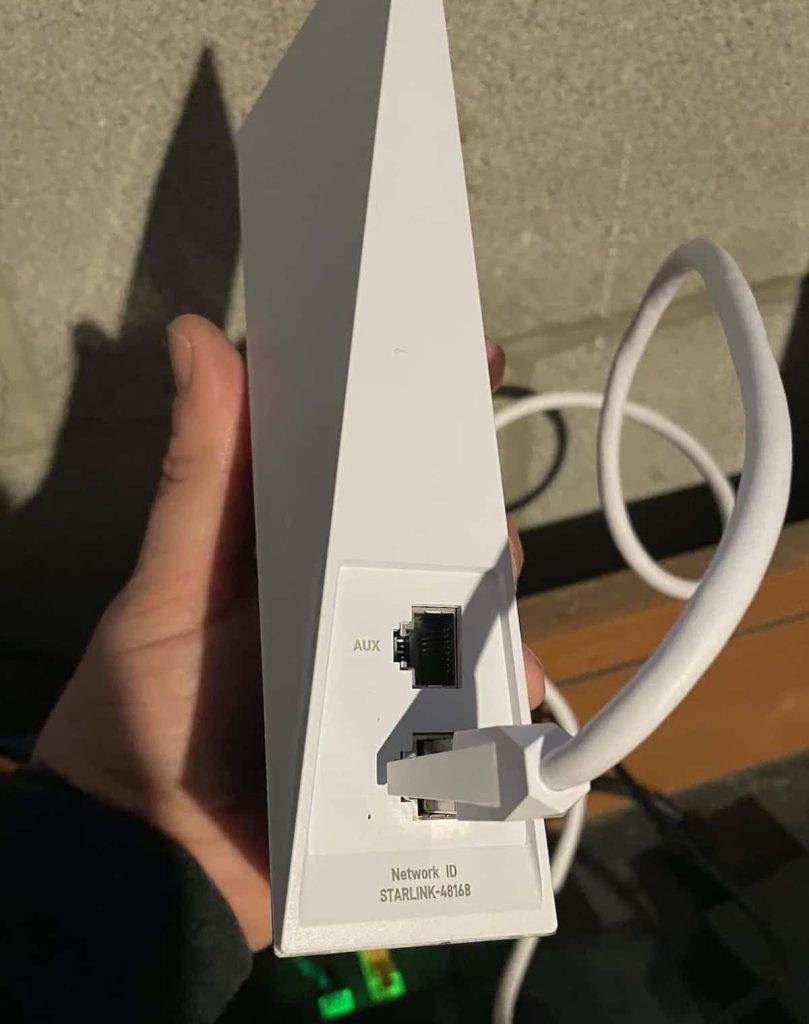
The dish sends the internet signal to the Starlink router via a high-speed proprietary cable (RJ45-style, depending on model). The router processes and redistributes this signal. - Wi-Fi Broadcast:
The Starlink router then converts that signal into a dual-band Wi-Fi network (2.4GHz and 5GHz), allowing all your wireless devices to connect seamlessly. - Network Optimization and Management:
Through the Starlink app, the router constantly monitors your connection strength, signal obstructions, and speed to optimize performance automatically.
Wi-Fi Bands: Dual Band Functionality
The Starlink Wi-Fi router broadcasts over two frequency bands:
| Band | Frequency | Range | Speed | Best For |
|---|---|---|---|---|
| 2.4 GHz | Longer range, slower speed | Covers larger areas | Up to 100 Mbps | General use, smart home devices |
| 5 GHz | Shorter range, faster speed | More speed, less interference | Up to 300 Mbps+ | Streaming, gaming, video calls |
This dual-band approach ensures users can enjoy both wide coverage and high-speed performance, depending on their device’s proximity to the router.
Starlink Router Speed and Latency
According to user data and independent tests from Ookla Speedtest and PCMag, the Starlink router typically delivers:
| Location | Download Speed | Upload Speed | Latency |
|---|---|---|---|
| North America | 100–220 Mbps | 10–20 Mbps | 25–45 ms |
| Europe | 90–180 Mbps | 9–18 Mbps | 30–50 ms |
| Rural Areas (Sparse Coverage) | 60–120 Mbps | 5–10 Mbps | 40–60 ms |
Quote from Starlink user review (Reddit, 2024):
“The Starlink router gave me over 150 Mbps in the middle of nowhere — I went from dial-up speeds to Netflix in HD overnight.”
These numbers vary depending on satellite density, geographical location, and obstructions (like trees, buildings, or mountains).
Starlink Router Range and Coverage
The coverage range of a single Starlink router depends on model and placement.
On average:
- Starlink Gen 1 router: ~1,200–1,500 sq. ft.
- Starlink Gen 2 router: ~1,500–2,000 sq. ft.
- Starlink Wi-Fi 6 router (2024 model): up to 2,500+ sq. ft.
You can extend this coverage by adding Starlink Mesh Nodes or third-party Wi-Fi extenders — which we’ll cover in a later section.
Pro Tip:
To maximize Wi-Fi range:
- Place the router centrally in your home.
- Avoid walls and metal obstructions.
- Keep it elevated (like on a table or shelf).
- Use mesh nodes for large or multi-story spaces.
Starlink Router’s Smart Features
The router isn’t just a signal broadcaster — it’s packed with intelligent networking features that enhance connectivity and simplify management:
- Automatic firmware updates: Keeps performance and security current.
- Adaptive bandwidth management: Prioritizes streaming or gaming devices automatically.
- Real-time diagnostics: Monitors speed, latency, and connected devices in the app.
- Self-healing Wi-Fi network: Automatically reroutes traffic if one node (in mesh setups) fails.
Starlink Router vs Traditional Routers (Technical Snapshot)
| Feature | Starlink Router | Traditional ISP Router |
|---|---|---|
| Connection Source | Satellite (LEO) | Cable / Fiber |
| Average Latency | 25–45 ms | 5–20 ms |
| Wi-Fi Range | Up to 2,500 sq. ft. | 1,200–1,800 sq. ft. |
| Firmware Updates | Automatic (OTA) | Manual (user-dependent) |
| Mesh Support | Yes (Wi-Fi 6 models) | Varies by brand |
| Setup Complexity | Very simple | Moderate |
Even though Starlink routers may not match fiber-level latency, their plug-and-play simplicity, automatic optimization, and mesh capability make them ideal for users outside fiber zones.
Key Takeaway
The Starlink router is more than a Wi-Fi device — it’s a gateway to global satellite internet access. By blending smart design, dual-band connectivity, and real-time optimization, it enables users in remote locations to experience modern broadband without relying on traditional infrastructure.
Next up, we’ll go hands-on with a step-by-step Starlink router setup guide, where we’ll walk through unboxing, connection, and Wi-Fi configuration using the Starlink app.
Starlink Router Setup Guide (Step-by-Step)
Setting up your Starlink router is surprisingly easy — you don’t need a technician or advanced networking skills. SpaceX designed the system for plug-and-play installation, allowing users to go from unboxing to streaming within 30 minutes.
Let’s go step-by-step through the full setup process.
Step 1: Unboxing Your Starlink Kit
When your Starlink kit arrives, you’ll find it packaged securely in a sturdy gray box. Every component has a purpose, so before starting, confirm you have all the necessary parts.
What’s inside the box:
- Starlink dish (Dishy) – The satellite receiver that connects to the Starlink network.
- Mounting base – A tripod-style base that holds your dish in place.
- Starlink router – The Wi-Fi hub that transmits your internet signal.
- Cables – Power cable and proprietary connection cable between the dish and router.
- Power supply unit – Powers both the router and dish.
- Setup instructions – Including a QR code for app download.
Pro Tip: Before installation, inspect cables and connectors for damage. Faulty cables are a common reason for failed setup.
Step 2: Connecting the Starlink Dish and Router
Once unboxed, it’s time to connect everything. The design ensures there’s only one correct way to connect cables, minimizing errors.
Instructions:
- Place your Starlink dish on its mount.
- Connect the dish cable to the router’s port labeled “Dish” (the ports are color-coded or symbol-marked).
- Plug the power supply into a wall outlet.
- The router’s light should turn solid white — indicating it’s powered on and searching for signal.
Connection Tip:
If your router light doesn’t turn on:
- Ensure cables are fully seated (they click when secure).
- Try another outlet.
- Wait at least 2–5 minutes for boot-up — initial startup can take time.
Step 3: Using the Starlink App
The Starlink app is the central command center for setup and management. It’s available on both Android and iOS platforms.
To install:
- Search “Starlink” on Google Play or the Apple App Store.
- Download and open the app.
- Sign in with your Starlink account email.
In the app, you can:
- Activate your Starlink service.
- Check obstructions (trees, buildings).
- View real-time signal strength and satellite visibility.
- Access speed tests, network settings, and connected devices.
App Setup Process:
- Scan the QR code from your kit or router to pair it.
- Wait while the app connects to your router and dish.
- Follow the on-screen prompts for automatic detection.
- When the app confirms “Dish Online”, your internet signal is ready.
Pro Tip: Use the app’s “Obstruction Finder” tool before placing your dish permanently — even small obstructions like trees can interrupt signal and lower speed.
Step 4: Configuring Wi-Fi Name and Password
After the Starlink router is online, you’ll configure your Wi-Fi network name (SSID) and password.
Steps:
- In the app, open Settings > Wi-Fi Configuration.
- Enter a custom network name (avoid “Starlink123” or defaults for security).
- Choose a strong password (at least 12 characters, mix letters, numbers, and symbols).
- Save and reconnect your devices using your new credentials.
This simple customization protects your network and helps you identify your Starlink Wi-Fi if you have multiple routers nearby.
Security Note: Starlink routers use WPA2 encryption, and newer Wi-Fi 6 models support WPA3, providing advanced protection against unauthorized access.
Step 5: Testing Internet Speed and Signal Strength
Once connected, you’ll want to verify your performance. The Starlink app includes a built-in speed test that measures download speed, upload speed, and latency.
How to run a test:
- Open the app → Tap Speed Test → Wait 10–15 seconds.
You should see something like this:
| Test Type | Expected Range | Notes |
|---|---|---|
| Download Speed | 100–220 Mbps | May vary by region and time of day. |
| Upload Speed | 10–20 Mbps | Often lower than download speed. |
| Latency (Ping) | 25–45 ms | Ideal for HD streaming and gaming. |
If your results are significantly lower, check for:
- Obstructions (trees, structures, etc.)
- Router placement (try moving it centrally)
- Firmware updates (automatic but can take time)
Pro Tip: Run speed tests at different times of day. Speeds can fluctuate slightly depending on satellite coverage and network traffic.
Step 6: Optional – Mounting and Cable Management
If you’re installing Starlink permanently, consider:
- Roof Mount: For the clearest view of the sky.
- Pole Mount: For flexible positioning away from obstructions.
- Wall Mount: Best for side installations with open southern exposure (Northern Hemisphere).
Keep cables tidy using clips or conduits to protect from weather and animals.
Step 7: Confirming a Stable Connection
Finally, confirm your setup:
- Router light is solid white → connected.
- Starlink app shows “Online” status.
- Internet is accessible on multiple devices.
If you see “Searching” or “No Signal Received”, your dish may need repositioning. The app’s “View Visibility” feature helps you find better orientation.
Key Setup Takeaways
| Common Issue | Quick Fix |
|---|---|
| Router not connecting | Reboot router and check cable connections |
| Weak Wi-Fi signal | Reposition router or use mesh node |
| App not pairing | Restart phone and router, ensure Bluetooth is enabled |
| Speed lower than expected | Check for obstructions, ensure latest firmware |
Final Thought on Setup
“Starlink’s router setup process is so streamlined that even non-technical users can have high-speed internet running in under half an hour.”
By following these simple steps, your Starlink router will be fully operational — ready to deliver fast, reliable satellite-powered Wi-Fi across your space.
How to Access and Manage Your Starlink Router Settings
Once your Starlink router is up and running, it’s time to take control of your network. Whether you want to rename your Wi-Fi, manage connected devices, or set up parental controls, the Starlink app and router settings make it simple to monitor and optimize your internet performance.
Unlike traditional routers that require logging in through a browser (using an IP address like 192.168.1.1), the Starlink router is managed almost entirely through the Starlink mobile app — an intuitive tool that centralizes all your settings in one place.
Accessing the Starlink Router Dashboard
To access your router settings:
- Open the Starlink App on your smartphone or tablet.
- Ensure your phone is connected to your Starlink Wi-Fi network.
- Tap the “Settings” icon in the bottom navigation bar.
- You’ll now see a dashboard with key information like:
- Network name (SSID)
- Online status
- Connected devices
- Speed statistics
- Signal strength and obstructions
From here, you can modify Wi-Fi settings, check connected devices, and monitor performance in real time.
Pro Tip: Always keep the Starlink app updated — new versions often include firmware updates and new management tools for your router.
Changing Wi-Fi Name and Password
To rename your Wi-Fi network or update your password:
- Go to Settings → Wi-Fi Configuration.
- Enter a new SSID (Wi-Fi name) that’s easy to identify.
- Choose a secure password (use letters, numbers, and symbols).
- Save changes and reconnect your devices to the updated network.
This step is especially important if you’ve just migrated from the default network name to a custom one. Using a personalized SSID makes identifying your network easier and strengthens security.
Viewing Connected Devices
Your Starlink router automatically lists all active and recently connected devices.
You can view these under Network → Devices in the app.
For each connected device, you’ll see:
- Device name (phone, laptop, TV, etc.)
- Connection type (2.4 GHz or 5 GHz)
- Signal strength
- Data usage
You can also:
- Pause internet access for specific devices (great for parental control).
- Rename devices for better organization.
- Block unknown devices if you suspect unauthorized access.
Quick Fact: The Starlink router currently supports up to 128 connected devices at once (on Wi-Fi 6 models), making it suitable for smart homes and small businesses.
Enabling Guest Wi-Fi Network
Need a separate network for visitors or clients? The Guest Wi-Fi feature creates an isolated network that keeps your main network private.
To enable guest Wi-Fi:
- Open the app → Go to Settings → Guest Network.
- Toggle “Guest Wi-Fi” ON.
- Choose a unique name and password for the guest network.
- Optionally set time limits or data restrictions.
Guest Wi-Fi ensures your personal devices remain secure while still providing internet access to others.
Using Starlink Router Without the App
Although the Starlink app is the easiest way to manage your router, advanced users can access limited settings through a web interface.
To do this:
- Connect your device to the Starlink Wi-Fi network.
- Open a browser and type:
http://dishy.starlink.comorhttp://192.168.100.1 - You’ll be directed to a simple dashboard showing router details and connection stats.
However, keep in mind that most advanced configurations are only available via the app, not the browser interface.
Starlink Router Configuration Options
The app provides various settings to help you fine-tune your Starlink Wi-Fi performance:
| Feature | Description |
|---|---|
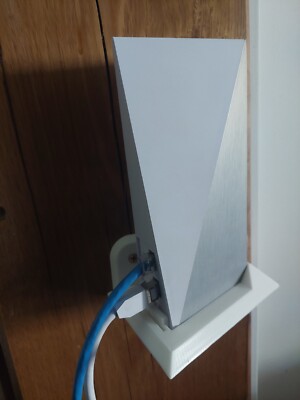
| Bypass Mode | Disables the built-in Starlink Wi-Fi so you can use a third-party router. |
| Network Split (2.4GHz / 5GHz) | Lets you manually separate Wi-Fi bands for specific devices. |
| Mesh Node Setup | Add additional Starlink routers or mesh nodes to expand coverage. |
| Device Prioritization | Prioritize certain devices (like a gaming PC or TV) for bandwidth allocation. |
| Diagnostics & Speed Tests | Run connection tests directly from the app to troubleshoot issues. |
Advanced Router Management Features
Here are a few powerful tools built into the latest Wi-Fi 6 Starlink router models:
- Dynamic Frequency Selection (DFS):
Automatically selects the best channel to reduce congestion. - MU-MIMO Support (Multi-User Multiple Input, Multiple Output):
Improves performance when many devices are connected simultaneously. - Automatic Firmware Updates:
The router periodically downloads and installs updates from SpaceX, improving security and performance. - Mesh Compatibility:
Seamlessly integrates with Starlink mesh nodes for extended coverage without manual configuration.
Troubleshooting Router Settings Access
If you can’t access your router settings or the app fails to connect:
- Ensure your phone is connected to Starlink Wi-Fi, not mobile data.
- Restart your router (unplug for 30 seconds, then reconnect).
- Reinstall the Starlink app.
- Reset your router by pressing and holding the reset button (if available) for 10 seconds.
Pro Tip: Starlink routers don’t have a standard web login like older routers, so always rely on the app for configuration. This simplifies the process and reduces user errors.
Key Takeaways
- The Starlink app is your all-in-one control panel for managing router performance, settings, and security.
- You can easily change Wi-Fi details, manage devices, and add guest networks without technical skills.
- For advanced networking or integration with third-party routers, you’ll use Bypass Mode (covered in a later section).
- Regular firmware updates keep your Starlink router secure and optimized automatically.