
When it comes to reliable network performance for businesses, internet service providers, and enterprise environments, the Adtran router has earned a reputation for stability, scalability, and robust security. Known for their enterprise-grade networking solutions, Adtran routers play a crucial role in ensuring smooth data transmission, secure connections, and consistent uptime in both small and large network infrastructures.

What Is an Adtran Router?
An Adtran router is a hardware device developed by Adtran, Inc., a U.S.-based global provider of networking and communications equipment. These routers are designed to manage, direct, and secure data traffic between local networks (LANs) and the internet or other wide area networks (WANs).
Unlike traditional consumer routers, Adtran routers are engineered for enterprise-grade reliability—supporting advanced features like VLANs, Quality of Service (QoS), firewall protection, and VPN tunneling.
In simple terms, an Adtran router works as the central hub of a network, ensuring data packets reach their destination efficiently and securely. Whether you’re running a large-scale ISP network or a small business LAN, Adtran routers are built to handle high-speed connections and complex configurations.
A Quick Look at Adtran as a Company
Adtran was founded in 1985 and is headquartered in Huntsville, Alabama, USA. Over the years, the company has become one of the top players in networking and telecommunications, with products spanning routers, switches, wireless access points, and optical transport systems.
Some notable milestones include:
- Over 35 years of experience in broadband and enterprise networking.
- A strong global presence with solutions deployed in over 60 countries.
- Innovations in fiber access, 5G transport, and SD-WAN technology.
- Merged with ADVA Optical Networking in 2022, further strengthening its optical and IP connectivity portfolio.
Quote: “Adtran’s mission is to enable a fully connected world through innovation in network access, performance, and reliability.” – Adtran Official Vision Statement
This history shows that Adtran is not just a router manufacturer but a network solutions leader trusted by ISPs, enterprises, and telecom providers worldwide.
How Does an Adtran Router Work?
To understand how an Adtran router functions, let’s break it down into simple parts:
- Data Routing:
The router directs data packets between different networks—your local LAN and the internet. Adtran routers use intelligent routing protocols (like RIP, OSPF, and BGP) to determine the fastest and most efficient paths for data transfer. - Network Address Translation (NAT):
Adtran routers perform NAT, which allows multiple devices in a local network to share a single public IP address. This ensures efficient IP usage and better security. - Firewall and Security Controls:
Built-in firewalls protect your network from unauthorized access and cyber threats. Adtran routers can be configured with access control lists (ACLs), stateful packet inspection (SPI), and VPN encryption to secure both wired and wireless traffic. - Quality of Service (QoS):
QoS prioritizes critical traffic (like VoIP or video conferencing) over less important data. This ensures smooth communication and stable performance even during high network load. - VLAN Management:
Virtual LANs (VLANs) help segment the network for better organization, security, and performance—especially useful for businesses with multiple departments or tenants.
Diagram: How an Adtran Router Connects Your Network
| Network Component | Function | Example |
|---|---|---|
| WAN Port | Connects router to ISP or external network | Fiber, DSL, Ethernet |
| LAN Ports | Connects internal devices | PCs, printers, VoIP phones |
| Firewall | Protects against unauthorized access | Packet filtering, intrusion prevention |
| Routing Engine | Determines data path | OSPF, BGP routing |
| Wi-Fi Module (if available) | Wireless connectivity | Wi-Fi 5 or Wi-Fi 6 standards |
Key Features That Make Adtran Routers Stand Out
Adtran routers aren’t just about connecting devices—they’re designed for network optimization, stability, and scalability. Below are the standout features that make them unique:
- High Performance Routing: Supports gigabit and multi-gigabit data rates ideal for enterprises and ISPs.
- Robust Security Protocols: Includes VPN, SSL encryption, and IPSec tunnels for secure data transfer.
- Modular Design: Easily integrates with switches, firewalls, and VoIP systems.
- Remote Management: Adtran routers support CLI (Command Line Interface), web GUI, and SNMP monitoring, enabling easy remote administration.
- Energy Efficient: Built with power-saving technology for sustainable networking.
Where Adtran Routers Are Commonly Used
| Industry | Application | Example |
|---|---|---|
| Telecommunications | ISP backbone routing | Adtran Total Access routers |
| Enterprise Networks | Office LAN and WAN connectivity | Adtran NetVanta series |
| Education & Government | Secure network segmentation | VLAN + QoS setup |
| Healthcare | Data security and compliance | HIPAA-compliant networks |
| Retail | Multi-branch connectivity and VPNs | Remote branch networking |
Each of these sectors benefits from Adtran’s focus on performance, reliability, and network scalability. Their routers are particularly valued for their long lifespan, low failure rate, and enterprise-level support.
Why Businesses Prefer Adtran Routers
Businesses and IT administrators often choose Adtran routers over other brands due to a combination of performance, support, and flexibility. Here’s why:
- Enterprise-Grade Reliability – Adtran routers can handle thousands of simultaneous connections without downtime.
- Superior Technical Support – Adtran provides robust documentation and U.S.-based support for network engineers.
- Customizable Configuration – Adtran’s AOS (Adtran Operating System) gives administrators deep control over routing, security, and bandwidth management.
- Cost-Effective Performance – Compared to competitors like Cisco or Juniper, Adtran offers similar enterprise features at a more accessible price point.
- Scalability – Whether it’s a small office or a regional data center, Adtran routers can be scaled and upgraded as network needs grow.
Case Study: ISP Upgrades to Adtran Routers for Better Performance
Case: A regional ISP in Texas replaced its aging routers with Adtran Total Access 900 series.
Result:
- 45% improvement in data throughput.
- 30% reduction in network downtime.
- Easier remote management using Adtran’s CLI interface.
- Enhanced customer satisfaction with fewer connection drops.
This case highlights how Adtran routers deliver tangible improvements in both performance and reliability, making them a top choice for service providers.
Conclusion of Section 1
The Adtran router isn’t just another networking device—it’s a high-performance solution built for modern network environments where speed, uptime, and security are non-negotiable. From small business networks to ISP-grade infrastructures, Adtran continues to set a standard in reliable, secure, and scalable connectivity.
Popular Adtran Router Models (2025 Update)
As of 2025, Adtran continues to offer a versatile lineup of routers that cater to different environments — from small offices and remote branches to large enterprise and ISP networks. Each Adtran router model is engineered with a focus on performance, scalability, and security, backed by the brand’s decades-long expertise in network hardware design.
In this section, we’ll take a closer look at the most popular Adtran router series, explore their key features, and help you decide which Adtran router fits your business or home network.

1. Adtran NetVanta Series
The Adtran NetVanta series is one of the company’s most recognized product lines, designed primarily for business and enterprise networks. It’s known for its modular design, scalable performance, and advanced security features.
Key Features
- Comprehensive Routing: Supports dynamic routing protocols (OSPF, RIP, BGP) and static routes for complex networks.
- Integrated Security: Built-in firewall, VPN, and encryption for safe remote access.
- VoIP Ready: Ideal for Voice over IP networks and unified communications.
- Multi-interface Support: Ethernet, Gigabit, T1/E1, and fiber ports for diverse connectivity needs.
- Easy Management: Configurable via CLI, web GUI, or Adtran n-Command® management software.
Popular Models
| Model | Use Case | Key Specs | Price Range |
|---|---|---|---|
| NetVanta 3140 | Small to medium offices | 3x Gigabit ports, VPN, QoS | 💲💲 |
| NetVanta 3448 | High-performance branch router | 4x Ethernet, 200 Mbps throughput | 💲💲💲 |
| NetVanta 4430 | Enterprise and VoIP gateway | Modular slots, 1 Gbps, AOS OS | 💲💲💲💲 |
| NetVanta 5660 | Multi-site or ISP-grade | 10G ports, dual power supplies | 💲💲💲💲💲 |
Pro Tip: For most medium-sized businesses, the NetVanta 3448 offers the best balance of price, performance, and security.
2. Adtran Total Access Series
The Adtran Total Access series is primarily designed for telecommunication carriers, ISPs, and VoIP providers. These routers serve as integrated access devices (IADs) that can manage voice, data, and internet services over a single platform.
Key Features
- Carrier-Grade Performance: Built for continuous uptime and heavy data loads.
- Integrated VoIP Gateway: Converts traditional phone systems into IP-based communication.
- Advanced Diagnostics: Real-time monitoring and SNMP alerts for network engineers.
- Modular Expansion: Add interface modules for T1, E1, or fiber connections.
- Remote Management: Managed through Adtran’s Element Management System (EMS).
Popular Models
| Model | Best For | Speed / Capacity | Features |
|---|---|---|---|
| Total Access 908e Gen 3 | ISPs and MSPs | Up to 1 Gbps | SIP gateway, QoS, 8 FXS ports |
| Total Access 924e | Enterprise VoIP | Up to 200 Mbps | 24 analog ports, dual Ethernet |
| Total Access 916e | SMBs and branch offices | 100 Mbps | 16 ports, built-in VPN |
| Total Access 5000 | Carrier-grade broadband | Up to 10 Gbps | Fiber access, SDH/SONET, modular chassis |
Fact: The Total Access 908e is one of Adtran’s most popular routers for ISPs due to its reliability and compatibility with multiple VoIP providers.
3. Adtran Bluesocket Series (Wi-Fi Management)
The Adtran Bluesocket line focuses on wireless LAN management and cloud-based Wi-Fi control. These routers and access points are widely used in education, retail, and healthcare environments, where secure and high-performance Wi-Fi is critical.
Key Features
- Cloud-Managed Wi-Fi: Centralized management through Adtran’s ProCloud service.
- Seamless Roaming: Zero-handoff roaming for continuous Wi-Fi connections.
- Security Integration: Built-in wireless intrusion prevention and user authentication.
- Scalability: Can support hundreds of APs across campuses or enterprise facilities.
- Application Visibility: Monitor bandwidth and app usage across the network.
Popular Models
| Model | Type | Wi-Fi Standard | Capacity | Best For |
|---|---|---|---|---|
| Bluesocket 2030 | Access Point | Wi-Fi 6 | 2.4 & 5 GHz dual-band | Small businesses |
| Bluesocket 3040 | Access Point | Wi-Fi 6E | High-density areas | Schools, retail |
| Bluesocket vWLAN Gateway | Virtual Controller | Cloud-managed | Enterprise | Multi-location businesses |
Quote: “The Bluesocket series delivers cloud-managed simplicity with enterprise-grade performance — bridging the gap between wired and wireless networking.” — Adtran Product Team, 2024 Report
4. Adtran SD-WAN Solutions
In response to the growing need for intelligent traffic routing and multi-branch connectivity, Adtran introduced SD-WAN capabilities integrated into their NetVanta and Total Access product lines.
Why SD-WAN Matters
- Reduces WAN costs by using multiple internet links efficiently.
- Improves performance for cloud applications (Microsoft 365, AWS, Google Workspace).
- Increases reliability by automatically rerouting traffic during link failures.
- Simplifies centralized network management.
Example SD-WAN Deployment
| Company Size | Number of Sites | Router Used | Performance Gain |
|---|---|---|---|
| Medium Enterprise | 12 | NetVanta 5660 SD-WAN | +38% throughput |
| National ISP | 100+ | Total Access 908e SD-WAN | +52% uptime stability |
| Retail Chain | 50 | NetVanta 3140 SD-WAN | +30% bandwidth efficiency |
Case Insight: In 2024, a regional retail company replaced MPLS with Adtran SD-WAN routers and reduced annual WAN costs by 40% while improving branch network reliability.
Comparison Chart: Top Adtran Router Models (2025)
| Series | Target User | Max Speed | Wi-Fi | Security | Management Type | Price |
|---|---|---|---|---|---|---|
| NetVanta | Small–Large Businesses | Up to 10 Gbps | Optional | ✅ VPN, Firewall | CLI/Web/SNMP | 💲💲–💲💲💲💲 |
| Total Access | ISPs, Telecom | Up to 10 Gbps | No | ✅ VoIP, VPN | EMS/Remote CLI | 💲💲💲–💲💲💲💲 |
| Bluesocket | Wireless Enterprises | Up to Wi-Fi 6E | ✅ | ✅ WPA3, WIPS | Cloud (ProCloud) | 💲💲 |
| SD-WAN | Multi-site Businesses | Up to 10 Gbps | Optional | ✅ Encryption | Central Dashboard | 💲💲💲 |
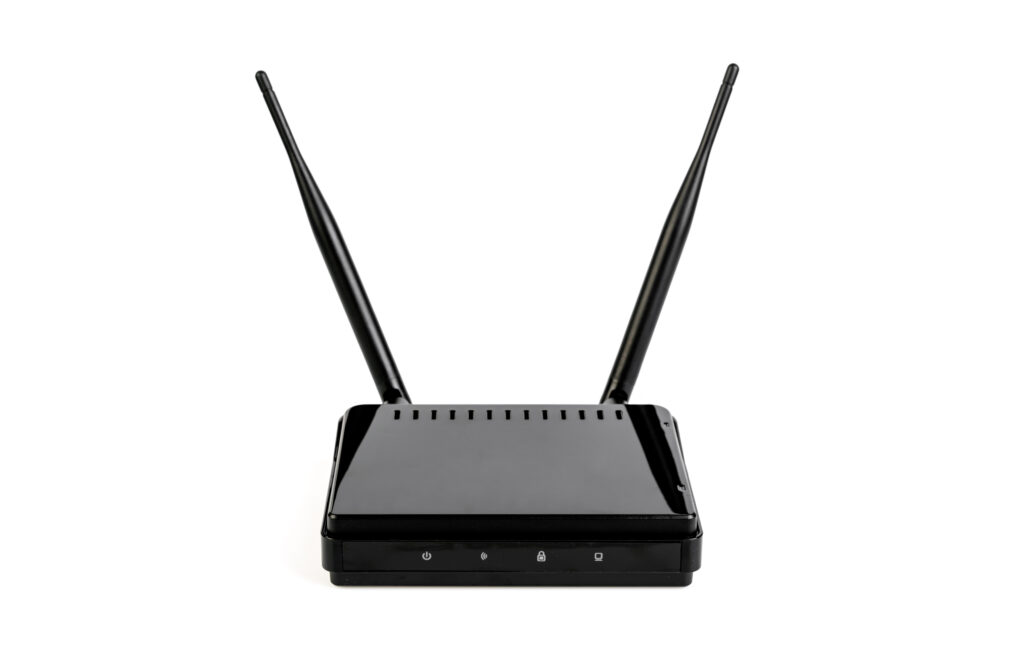
Choosing the Right Adtran Router for Your Needs
When deciding on an Adtran router model, consider the following factors:
- Network Size and Traffic Load – For heavy enterprise or ISP-level traffic, opt for the Total Access 5000 or NetVanta 5660.
- Type of Connectivity – If you need both wired and wireless, the Bluesocket series is ideal.
- Security Requirements – Choose models with advanced firewall and VPN features for sensitive data.
- Budget Constraints – Adtran offers a wide pricing range without sacrificing quality or performance.
- Future Scalability – Modular models like the NetVanta 4430 or Total Access 908e allow future expansion as your network grows.
Conclusion of Section 2
The Adtran router lineup offers something for every type of network environment—whether you’re running a small business, a multi-location enterprise, or an internet service provider. With powerful routing, advanced security, and modern SD-WAN capabilities, Adtran continues to be one of the most trusted names in networking for 2025 and beyond.
Adtran Router Setup Guide: Step-by-Step Configuration for Beginners and Pros
Setting up your Adtran router correctly is essential to ensure your network runs smoothly, securely, and at full performance. Whether you’re installing an Adtran NetVanta, Total Access, or Bluesocket router, the setup process follows a logical flow — connect, log in, configure, and secure.
Let’s go through each step in detail.
1. How to Connect and Power On Your Adtran Router
Before diving into the configuration, it’s important to physically connect your Adtran router correctly. Adtran routers come with multiple Ethernet ports, WAN/LAN interfaces, and power options, depending on the model.
Step-by-Step Physical Setup
- Unbox the Router:
Ensure all accessories are included — power adapter, Ethernet cables, and documentation. - Find a Suitable Location:
Place the router in a well-ventilated area, ideally close to your modem or fiber ONT (Optical Network Terminal). Avoid placing it near walls or metal surfaces that can interfere with signal. - Connect the WAN Port:
Plug your ISP’s internet cable (DSL, Ethernet, or fiber) into the WAN or Internet port on your Adtran router. - Connect LAN Devices:
Use LAN ports to connect computers, VoIP phones, or switches. - Power On the Router:
Connect the power adapter and press the power button (if available). Wait for the LED indicators to light up.
LED Indicator Reference Table
| LED Indicator | Color | Meaning |
|---|---|---|
| Power | Solid Green | Router is powered on |
| WAN/Internet | Blinking Green | Active internet connection |
| LAN | Solid/Flashing Green | Device connected and transmitting data |
| Alarm | Red/Amber | Hardware or connection error |
| Wi-Fi | Blue/Green | Wireless broadcasting active |
Tip: If your router’s LED shows a red or amber light, it might indicate a failed connection or hardware issue. Double-check your cables and restart the router.
2. How to Log In to Your Adtran Router Admin Panel
Once your router is powered and connected, the next step is to access the configuration interface (admin panel). This is where you can customize your settings, update firmware, and secure your network.
Default Login Details
| Setting | Default Value |
|---|---|
| Default IP Address | 192.168.1.1 or 10.10.10.1 |
| Default Username | admin |
| Default Password | password or password1 |
Note: Always change the default password after your first login to prevent unauthorized access.
Login Instructions
- Connect your computer to the router using an Ethernet cable (recommended for first-time setup).
- Open your web browser (Chrome, Firefox, or Edge).
- In the address bar, type
192.168.1.1(or10.10.10.1depending on your router model). - When the login page appears, enter the default username and password.
- Click Login to access the Adtran AOS (Operating System) dashboard.
If you’re a network engineer or advanced user, you can also log in via SSH or Telnet using the router’s IP address and admin credentials.
3. How to Configure Your Adtran Router Settings
Once you’re inside the Adtran router dashboard, you can begin customizing your network settings. Below are the most important configurations to perform immediately after installation.
A. Change the Default Network Name (SSID) and Password
- Go to Wi-Fi Settings → Basic Configuration.
- Enter a new SSID (network name).
- Set a strong Wi-Fi password (minimum 12 characters, with symbols and numbers).
- Choose WPA3 or WPA2-PSK for maximum security.
- Save and apply settings.
Pro Tip: Avoid using personal information (like names or birthdays) in your SSID or password.
B. Set Up DHCP (Dynamic Host Configuration Protocol)
- Navigate to Network → DHCP Settings.
- Enable DHCP Server to automatically assign IPs to connected devices.
- Define the IP range (e.g.,
192.168.1.10 – 192.168.1.200). - Set the Default Gateway to your router’s IP.
- Apply and save.
This ensures all your connected devices receive proper IP assignments automatically.
C. Configure DNS (Domain Name System)
- Go to Network → DNS Settings.
- Use trusted public DNS servers like:
- Google DNS:
8.8.8.8and8.8.4.4 - Cloudflare DNS:
1.1.1.1and1.0.0.1
- Google DNS:
- Click Save.
This can improve browsing speed and reliability.
D. Enable NAT (Network Address Translation)
- Navigate to Routing → NAT Configuration.
- Select Enable NAT on the WAN interface.
- Save and restart if prompted.
NAT allows multiple devices on your LAN to share a single public IP, providing both convenience and an extra layer of security.
E. Set Up Port Forwarding (Optional)
If you need to host web servers, gaming servers, or CCTV systems, you’ll need port forwarding.
- Go to Firewall → Port Forwarding.
- Add a new rule:
- Service Name: Web Server
- External Port: 80
- Internal IP: 192.168.1.10
- Internal Port: 80
- Save and enable.
This tells your router to send incoming requests on port 80 directly to your local web server.
F. Backup Your Configuration
After completing your setup:
- Go to System → Backup & Restore.
- Click Download Configuration File.
- Save it to a secure folder.
This lets you quickly restore your settings in case of a factory reset or firmware update.
4. Common Mistakes to Avoid During Setup
| Mistake | Why It’s a Problem | How to Fix |
|---|---|---|
| Leaving default password unchanged | Security vulnerability | Always change admin credentials |
| Skipping firmware update | May miss bug fixes & security patches | Update firmware after first setup |
| Misconfigured DHCP | Devices can’t access internet | Ensure IP range doesn’t overlap |
| Wrong DNS settings | Slow browsing or failed connections | Use verified DNS servers |
| Ignoring backup | Lose all settings after reset | Export backup immediately |
Expert Tip: Always document your network configuration (IP plan, VLAN IDs, and password) in a secure offline file.
5. Quick Setup Summary Chart
| Step | Task | Description | Time |
|---|---|---|---|
| 1 | Connect hardware | Power and Ethernet setup | 2–5 mins |
| 2 | Access admin panel | Via browser or CLI | 2 mins |
| 3 | Configure network | Set SSID, DHCP, DNS | 5–10 mins |
| 4 | Secure settings | Change passwords, enable firewall | 3 mins |
| 5 | Backup | Save configuration file | 1 min |

Conclusion of Section 3
Setting up an Adtran router is a straightforward process once you understand the sequence — connect, log in, configure, and secure. By following these steps, you’ll ensure that your network operates at its best performance, stays protected from external threats, and remains easy to manage.
For advanced users, Adtran routers also support command-line configuration (CLI) and remote network management, which we’ll explore in later sections.
Advanced Adtran Router Configuration: VLANs, QoS, and Firmware Updates
While basic setup ensures your Adtran router works out of the box, advanced configuration takes your network to the next level. Adtran routers are designed for enterprise-grade networking, offering tools to manage bandwidth, segment traffic, and automate security policies.
Let’s break down these advanced features step by step.
1. Configuring VLANs (Virtual Local Area Networks) on Adtran Routers
A VLAN (Virtual Local Area Network) allows you to segment your network into separate, isolated groups of devices. This improves both security and performance.
For example:
- VLAN 10 for Office Workstations
- VLAN 20 for VoIP Phones
- VLAN 30 for Guest Wi-Fi
This prevents guests or less-secure devices from accessing sensitive business data.
Steps to Configure VLANs
- Access the Router Dashboard → Navigate to Network > VLAN Settings.
- Add a New VLAN:
- Click “Add VLAN”
- Assign a VLAN ID (e.g., 10)
- Give it a name (e.g., “Office LAN”)
- Assign Ports or Interfaces:
- Map VLAN 10 to LAN ports 1–4
- Map VLAN 20 to LAN port 5 (for VoIP)
- Enable DHCP per VLAN if each VLAN requires automatic IP assignment.
- Click Save and Apply.
Tip: VLANs work best when combined with managed switches that support tagging (802.1Q).
VLAN Configuration Example (CLI Command Line)
If you prefer CLI configuration (for faster deployment):
interface eth 0/1
switchport mode trunk
switchport trunk allowed vlan 10,20,30

vlan database
vlan 10 name "Office"
vlan 20 name "VoIP"
vlan 30 name "Guest"
exit
This creates three VLANs and allows them to pass through the trunk interface.
2. Implementing QoS (Quality of Service)
QoS (Quality of Service) is one of the most powerful features in Adtran routers. It prioritizes important traffic — like video calls, VoIP, or critical business apps — over less essential traffic such as downloads or social media.
This ensures smooth performance, especially when bandwidth is limited.
Why QoS Matters
| Traffic Type | Importance | Example | Priority |
|---|---|---|---|
| VoIP / Calls | Critical | Zoom, Teams, SIP phones | High |
| Streaming / Video | Important | YouTube, Netflix | Medium |
| Web Browsing | Normal | Chrome, Firefox | Medium |
| File Downloads | Non-Critical | FTP, Torrents | Low |
How to Configure QoS in Adtran Router GUI
- Navigate to Network > QoS Settings.
- Enable QoS Policy.
- Create Traffic Classes:
- Class 1: VoIP (UDP 5060–5061) → High Priority
- Class 2: Video (RTP traffic) → Medium Priority
- Class 3: Default (All Other) → Normal Priority
- Apply QoS Policy to WAN interface.
- Save and reboot the router.
Expert Tip: Combine QoS with VLAN tagging for maximum traffic control.
3. Firmware Update and Router Maintenance
Keeping your Adtran router firmware up to date is vital for security patches, performance optimization, and new feature support.
How to Update Firmware on Adtran Router
- Visit Adtran’s official website → www.adtran.com/support.
- Search your router model (e.g., NetVanta 3448).
- Download the latest firmware file (e.g.,
.binformat). - Log in to your router admin interface.
- Go to System → Firmware Upgrade.
- Upload the file and click Update.
- Wait for the router to reboot automatically.
Note: Do not power off the router during firmware installation — it can cause corruption.
Schedule Regular Maintenance
To keep your router reliable:
- Check logs weekly for unauthorized access attempts.
- Monitor bandwidth via Adtran’s SNMP or web dashboard.
- Backup configuration monthly.
- Reboot the router every few weeks for optimal performance.
4. Command-Line Interface (CLI) Configuration
For IT professionals, Adtran’s AOS CLI offers a more flexible, scriptable way to manage routers. It resembles Cisco IOS in structure and syntax.
Benefits of Using CLI
- Faster configuration changes
- Easier to replicate settings across multiple routers
- Better automation with scripts
- Access to hidden or advanced settings
Common CLI Commands
| Task | Command | Example |
|---|---|---|
| Enter privileged mode | enable | > enable |
| Enter configuration mode | configure terminal | # config t |
| Show current IP configuration | show ip interface brief | |
| Set static IP | ip address 192.168.1.1 255.255.255.0 | |
| Save config | write memory |
Example: Setting a Static IP via CLI
enable
configure terminal
interface eth 0/1
ip address 192.168.1.1 255.255.255.0
no shutdown
exit
write memory
This assigns a static IP address and saves the configuration.
5. Remote Management and Monitoring
Adtran routers can be managed remotely using several secure methods:
- HTTPS or SSH access (recommended)
- SNMP (Simple Network Management Protocol) for network monitoring
- NetVanta Cloud Management (Adtran’s centralized management platform)
Remote Access Setup Steps
- Go to System → Management Access.
- Enable SSH and disable Telnet (for security).
- Set up an access control list (ACL) to limit which IPs can log in remotely.
- Save configuration.
Security Tip: Use two-factor authentication (2FA) if available and always use strong admin credentials.
6. Advanced Network Security Settings
Adtran routers come with robust firewall, VPN, and intrusion prevention features.
Key Security Configurations
- Firewall Rules: Block unauthorized inbound traffic
- VPN Setup: Use IPsec or SSL VPN for remote employees
- MAC Filtering: Restrict devices by MAC address
- Access Lists (ACLs): Control which IPs can access router services
“Network security is not an option — it’s an ongoing responsibility.”
— Network Security Expert, Adtran Partner Insights (2024)
Conclusion of Section 4
Mastering advanced Adtran router configuration gives you full control over your network environment. By implementing VLANs, QoS, CLI management, and firmware updates, you’re not only optimizing performance but also fortifying your security posture.
These settings are essential for businesses, ISPs, and tech professionals who need stability, scalability, and security from their network infrastructure.