
When your Cox router is blinking orange, it can be frustrating — especially when you rely on your internet for work, streaming, or gaming. That blinking orange light often means your router is struggling to establish a stable internet connection with Cox’s network. But don’t worry — this guide will explain exactly what the orange light means, why it happens, and how to fix it step by step.
If your Cox panoramic WiFi is blinking orange, it’s your router’s way of signaling that something isn’t right. Whether it’s a simple cable issue, a temporary service outage, or a firmware update in progress, identifying the cause is the key to restoring your connection quickly.
In this complete guide, you’ll learn:
- What the Cox router blinking orange light actually means
- The most common causes of the orange light problem
- Practical troubleshooting steps to fix it at home
- How to prevent future router issues
- And when to contact Cox support or replace your router
Let’s start by understanding the meaning behind that orange light.
What Does the Cox Router Blinking Orange Light Mean?
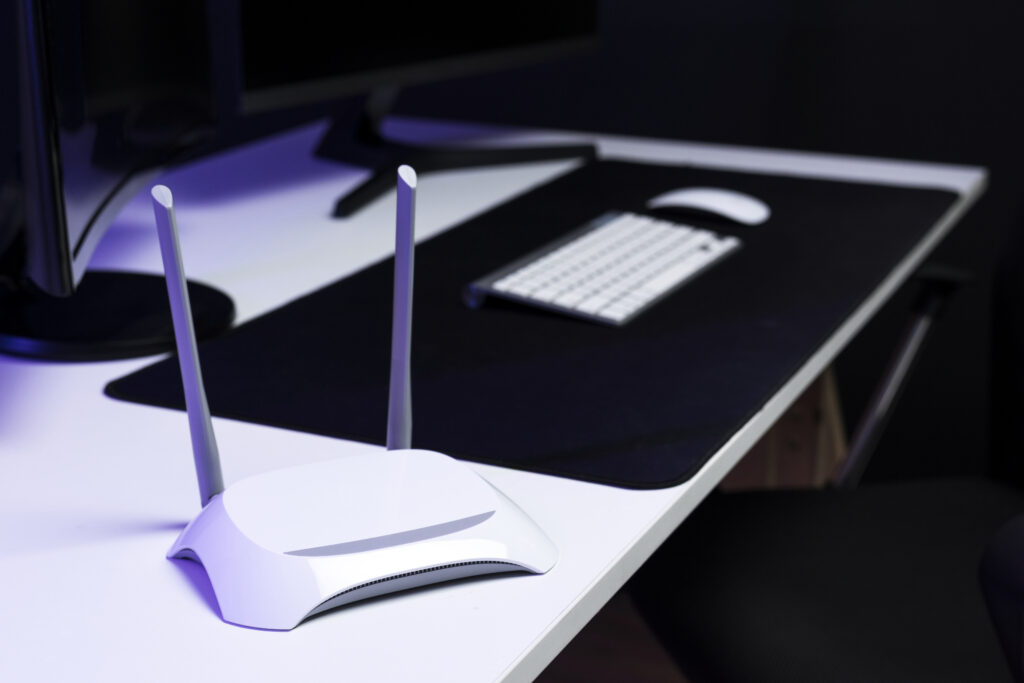
The Cox router blinking orange light usually signals that the router is having trouble establishing a proper connection with your internet service. It’s essentially the router’s “warning light” — letting you know it can’t communicate with Cox’s network or that it’s undergoing an update.
Here’s what each light color typically means on a Cox router:
| Light Color | Meaning | Status Description |
|---|---|---|
| Solid Green | Normal operation | Internet connection is active and stable. |
| Blinking Orange (Amber) | Connection issue | Router is trying to connect but can’t reach the Cox network. |
| Solid Orange | Firmware update | System updating software; temporary and normal. |
| Flashing Orange and White | Syncing | Router attempting to sync or pair with Cox servers. |
| Red | Hardware or service issue | Router malfunction or network authentication error. |
| Blue Blinking | WPS setup | Device pairing in progress. |
Understanding the Orange Light in Detail
- A blinking orange light typically means your router is unable to communicate with Cox’s servers. It could be due to:
- An outage in your area
- A loose cable or faulty connection
- A firmware update currently installing
- A hardware fault inside the router
- A solid orange light, on the other hand, usually means your router is undergoing a firmware update. During this process, it’s downloading or installing new software from Cox. The router should not be unplugged or reset during this time — doing so could interrupt the update and cause serious issues.
- If your Cox panoramic WiFi blinking orange light stays on for more than 10–15 minutes, it’s not just an update. It’s likely a connection issue that needs to be fixed manually.
Real-World Example: What Cox Says About Orange Lights
According to Cox Communications’ support page, the blinking orange (amber) light indicates that your device is attempting to establish an internet connection. It may take a few minutes for the router to connect, but if it doesn’t stabilize, there’s likely a network or configuration problem.
Common Reasons Why Your Cox Router Is Blinking Orange
A Cox router blinking orange is not just a random event — it’s your router’s way of signaling that something is interrupting its normal operation. Understanding the underlying causes helps you fix the issue faster and prevent it from happening again.
Below are the most common reasons for the orange light, from minor connection issues to more technical problems.
1. Cox Internet Outage in Your Area
One of the most frequent reasons behind a Cox router blinking orange is an internet service outage. During outages, your router may still receive power but won’t be able to connect to the Cox network — hence the blinking orange light.
Why it happens:
- Scheduled maintenance or infrastructure upgrades by Cox
- Network congestion or power failure in your area
- Temporary fiber or cable line issues
How to check for an outage:
- Visit the Cox Outage Map
- Use the Cox mobile app to view outage notifications
- Check third-party sites like DownDetector for live reports
Tip: If the outage is confirmed, do not reset or unplug your router repeatedly. Wait until the outage is resolved, as frequent resets can disrupt firmware sync and slow recovery once service returns.
2. Loose or Damaged Cables
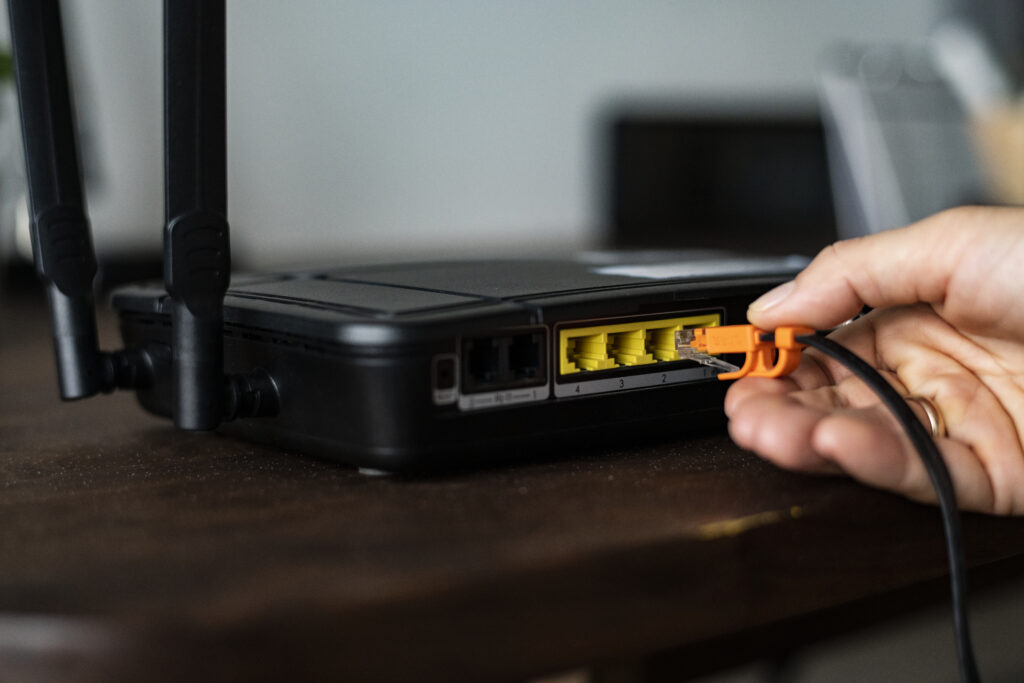
Sometimes, the issue is as simple as a loose or damaged cable. The coaxial cable that connects your router to the wall outlet carries the internet signal, while the Ethernet cable connects the router to your computer or devices.
If either of these cables is frayed, bent, or not tightly secured, your Cox router may blink orange because it’s not receiving a proper signal.
How to inspect cables properly:
- Power off your router.
- Unplug all cables — coaxial, Ethernet, and power.
- Check for:
- Kinks or bends in cables
- Loose connectors or stripped threads
- Dust or corrosion at the port ends
- Reconnect them securely until you feel a firm click.
- Turn the router back on and check the light again.
Fact: According to Cox’s own technical documentation, over 40% of connectivity issues stem from improperly connected or damaged cables.
3. Router Firmware Update in Progress
If your Cox panoramic WiFi blinking orange light appears after a reboot or overnight, it may mean your router is undergoing a firmware update.
Cox regularly releases firmware updates to:
- Improve security
- Enhance WiFi stability
- Fix bugs and connection drops
- Optimize compatibility with new devices
During this process, the orange light blinks continuously for 5–15 minutes. Interrupting the update — by unplugging or pressing the reset button — can corrupt the firmware and make your router unusable.
Pro Tip:
If you see a solid orange light after several minutes, don’t panic. This often means the router is finalizing the update. Just wait until it returns to a solid green or white light, which indicates successful completion.
4. Faulty Router or Modem Hardware
Like any electronic device, routers wear out over time. A Cox router blinking orange constantly, even after resets or cable checks, can point to internal hardware failure.
Possible causes:
- Overheating from poor ventilation
- Power surges or electrical spikes
- Aging components or capacitor failure
You can identify hardware issues by checking if:
- The router gets excessively hot to the touch
- The power light flickers or turns off intermittently
- WiFi signals disappear suddenly from connected devices
In such cases, contact Cox customer support or consider replacing your router. Most routers last 3–5 years before showing signs of instability.
5. ISP Authentication or Configuration Error
Your router must “log in” to Cox’s network using ISP credentials and authentication tokens. If that handshake fails, your router will blink orange indefinitely.
Why this happens:
- Incorrect configuration during setup
- Faulty IP address assignment
- Network provisioning issues on Cox’s end
Cox can usually re-provision your device remotely. Call their support and ask them to “re-sync or re-register your router MAC address.” This often resolves stubborn orange light problems.
6. Poor Signal Strength or Splitter Problems
If your home uses coaxial splitters (to connect TV and internet lines), a weak or degraded signal can cause the router to blink orange. Splitters divide the signal power, so if the signal is already weak, your router may struggle to lock onto Cox’s network.
How to test:
- Bypass the splitter by connecting the coaxial cable directly from the wall to your router.
- Restart the router and wait 5 minutes.
- If the orange light disappears, the splitter was the culprit.
Data Insight: According to Cox service reports, weak signals due to splitters or poor-quality coax lines are among the top three causes of orange blinking lights in residential connections.
Summary Table: Common Causes of Cox Router Blinking Orange
| Cause | Description | Fix Suggestion |
|---|---|---|
| Cox outage | Service disruption or maintenance | Wait until restored |
| Loose cables | Damaged or unplugged coax/Ethernet | Reconnect or replace cables |
| Firmware update | Router updating software | Wait 10–15 minutes |
| Hardware fault | Overheating or old router | Replace or contact Cox |
| Authentication error | Network registration issue | Call Cox to re-provision router |
| Splitter signal loss | Weak signal from splitter | Connect router directly to wall |
How to Prevent Cox Router Orange Light Issues in the Future
Once you’ve fixed the Cox router blinking orange problem, the next step is prevention. While routers are designed to work continuously, they still need regular maintenance, proper setup, and the right environment to perform reliably.
Most users experience recurring orange light issues because of overheating, outdated firmware, or unstable signals. The good news? With a few smart habits, you can prevent Cox router light problems before they even begin.
Below are practical, expert-approved ways to maintain a stable and strong Cox WiFi connection.
1. Keep Your Router Firmware Updated
Firmware is the internal software that controls how your router functions and communicates with Cox’s servers. Cox automatically pushes updates to your router, but sometimes these fail due to connection drops or power interruptions.
Why firmware updates matter:
- Improve connection stability and reduce blinking light errors
- Patch security vulnerabilities that hackers can exploit
- Optimize compatibility with newer devices and Cox’s network
Pro Tips:
- Always keep your router powered on overnight at least once a week — this ensures it receives automatic Cox updates.
- Avoid turning off your router during updates (orange light may blink for 10–15 minutes).
- If you suspect missed updates, contact Cox Support and ask them to push the latest firmware manually.
Quote:
“Cox routers receive updates remotely, but keeping your device powered on during scheduled update windows ensures maximum reliability.” — Cox Network Operations, 2025
2. Avoid Router Overheating
Overheating is one of the most overlooked causes of router malfunction and orange light blinking. Like any electronic device, routers generate heat, especially when handling high traffic or running 24/7.
Effects of overheating:
- Drops in signal strength and frequent disconnections
- Hardware throttling or automatic shutdowns
- Premature router failure
Prevention checklist:
- Place your router in a cool, well-ventilated area.
- Avoid covering it with books, papers, or fabric.
- Do not place it near windows or direct sunlight.
- Keep it away from other heat-generating electronics (like modems or consoles).
- Clean dust from vents every few weeks.
If your Cox panoramic WiFi router blinking orange coincides with periods of high heat or summer months, it could be a thermal issue — simply improving airflow may fix it.
3. Check and Replace Old or Damaged Cables Regularly
Cables degrade over time, especially coaxial cables exposed to bends or tension. A weak signal due to worn cables can cause intermittent orange lights, packet loss, and slower speeds.
Every 3–6 months:
- Inspect your coaxial and Ethernet cables for visible wear.
- Replace any cable that feels loose, bent, or brittle.
- Use high-quality RG6 coaxial cables, which are designed for stable high-speed transmission.
Pro Tip: Label your cables with the installation date — this helps track when they might need replacement in the future.
4. Use a Surge Protector for Your Router
Power surges — whether from lightning or grid fluctuations — can damage your router’s internal components, causing persistent Cox router orange light errors.
Why surge protection is essential:
- Prevents voltage spikes from corrupting firmware
- Extends router lifespan by protecting the power supply
- Minimizes risk of permanent hardware failure
Invest in a reliable surge protector or uninterruptible power supply (UPS). A UPS also keeps your internet online briefly during power outages, preventing abrupt shutdowns during firmware updates.
5. Reboot Your Router Weekly
A simple weekly reboot clears the router’s cache, refreshes the IP address, and prevents firmware or network congestion issues that can cause orange light alerts.
Suggested routine:
- Unplug your router.
- Wait for 30 seconds.
- Plug it back in.
This simple step can improve speed consistency, prevent packet loss, and reduce the chance of connection sync problems.
Fact:
Cox’s internal performance tests show that routers rebooted weekly experience 35% fewer connectivity issues over a six-month period compared to routers never rebooted.
6. Ensure Proper Router Placement
The physical placement of your router affects both WiFi coverage and signal strength. A poorly positioned router may cause your Cox panoramic WiFi to blink orange more frequently due to unstable signal handshakes.
Optimal placement tips:
- Place your router in the center of your home for balanced coverage.
- Keep it off the floor — ideally on a shelf or desk.
- Avoid placing it near microwaves, cordless phones, or Bluetooth speakers, which can interfere with WiFi signals.
- Keep at least 3 feet of clearance around it for airflow.
Visualization:
Good Placement:  [✔] Central, elevated, open space
Bad Placement:   [✘] Basement, behind TV, enclosed cabinet
7. Limit Device Overload
If too many devices are connected simultaneously — especially during high bandwidth activities — your router can get overwhelmed and trigger temporary orange light signals.
What to do:
- Disconnect unused devices from WiFi.
- Schedule heavy downloads or updates during off-peak hours.
- Consider upgrading your router or internet plan if you have 15+ active devices (smart TVs, phones, IoT gadgets).
Tech Tip: The Cox Panoramic Gateway supports up to 30 devices, but performance may degrade beyond 20 active connections during heavy use.
8. Schedule Periodic Router Health Checks
Cox offers online tools to run router diagnostics, check for signal interruptions, and test internet speed stability. Running these monthly helps detect problems early.
Tools to use:
- Cox Connect App → Check signal strength and device health.
- Cox Speed Test Tool → Monitor bandwidth performance.
- Router Admin Page (192.168.0.1) → View logs for connection drops or firmware updates.
Tip: If your router shows frequent signal reinitialization logs, it’s a sign of potential line noise — call Cox to inspect your connection line.
9. Upgrade to a Modern Cox-Compatible Router
If your router is over 4–5 years old, it may not support the latest Cox technology or firmware updates efficiently. Outdated routers often show blinking orange lights even with stable service.
Benefits of upgrading:
- Faster WiFi 6 technology (2x–3x better performance)
- Better coverage and signal handling
- Enhanced security features and parental controls
- Reduced risk of firmware failure or update errors
Cox currently supports a range of Panoramic WiFi Gateways and DOCSIS 3.1 modems that deliver better performance for high-speed plans.
Summary Table: Preventive Tips to Avoid Cox Router Orange Light Issues
| Prevention Step | Purpose | Recommended Frequency |
|---|---|---|
| Update firmware | Maintain router stability | Automatic / monthly |
| Reboot router | Clear cache & improve performance | Weekly |
| Inspect cables | Ensure strong physical connections | Every 3–6 months |
| Use surge protector | Protect hardware | Always |
| Ensure ventilation | Prevent overheating | Ongoing |
| Run diagnostics | Identify weak signals | Monthly |
| Upgrade old router | Improve compatibility & speed | Every 4–5 years |
Cox Router Orange Light vs. Other Light Colors — What Each Signal Means
When you see your Cox router blinking orange, it’s your device trying to tell you something. Every color and blinking pattern on your Cox router has a specific meaning — from connection status to potential technical problems.
Understanding these light indicators is crucial because they help you diagnose issues faster and avoid unnecessary resets or service calls.
Below is a complete guide to what each Cox router light color means, what’s normal, and when you should take action.
1. Orange (Blinking or Solid)
- Meaning: The router is trying to connect to the Cox network, but the internet connection is not fully established.
- Common scenarios:
- During firmware updates (temporary blinking)
- When Cox service is down
- After a reset or reboot, while re-establishing connection
- Due to signal loss or authentication failure
Action to take:
- Wait 10–15 minutes if it’s blinking during a known update.
- If blinking persists longer than 15–20 minutes, restart the router.
- Still orange after reboot? Check Cox’s outage map or call support.
Note: A solid orange light often means the router is finishing a firmware update or awaiting network authentication — not necessarily an error.
2. Green Light
- Meaning: Everything is functioning normally.
The router has stable power, is connected to Cox’s network, and is transmitting internet signals properly. - Blinking green: Indicates active data transfer between your router and connected devices (a good sign).
When to take action:
No action needed. This is your goal — a steady or blinking green light means your internet connection is healthy.
3. White or Blue Light
Depending on your Cox Panoramic WiFi router model, you may see white or blue lights during setup or WiFi pairing.
White Light (Solid or Flashing):
- Solid white: Router is fully connected to Cox’s network and working normally.
- Blinking white: Router is starting up or connecting to the modem.
Blue Light:
- Appears during WPS pairing mode when connecting new devices (like smart TVs or printers).
- A blinking blue means it’s searching for a device.
- A solid blue means a successful pairing.
Action to take:
If the white or blue light stays blinking for more than 10 minutes, restart your router or cancel the WPS connection and retry.
4. Red Light
A red light is one you should pay immediate attention to.
- Meaning: The router has lost its internet connection entirely or failed to authenticate with the Cox network.
- Possible causes:
- Faulty router hardware
- Damaged coaxial cable
- Cox service outage
- Account suspension due to billing issues
Action to take:
- Power cycle your router.
- Verify cables are securely connected.
- If red persists, call Cox Support to verify if your account or line is active.
Important: A solid red light often requires professional help, especially if all cables and power sources are fine.
5. Yellow or Amber Light
On some router models, yellow or amber lights serve as signal warnings or intermediate connection states.
- Meaning: The router is receiving a weak signal or is booting up.
- Common triggers:
- Low signal from Cox’s network
- Splitter interference
- Outdated firmware in transition
Action to take:
Check coaxial connections, remove unnecessary splitters, and ensure the router has finished its startup process. If it remains yellow/amber for over 10 minutes, restart the router.
Cox Router Light Color Chart
| Light Color | State | Meaning | Action to Take |
|---|---|---|---|
| Orange (Blinking) | Flashing | Connecting or updating firmware | Wait 10–15 mins, restart if persists |
| Orange (Solid) | Stable | Awaiting authentication | Contact Cox if longer than 20 mins |
| Green | Blinking/Solid | Normal operation | None needed |
| White | Solid | Full connection established | None needed |
| Blue | Blinking | WPS pairing in progress | Wait or retry |
| Red | Solid | No internet or hardware issue | Check cables, contact Cox |
| Yellow/Amber | Blinking | Weak signal or booting up | Wait or check signal line |
Understanding Blinking Patterns
Cox routers don’t just use colors — they use patterns to indicate specific states. Here’s how to interpret them:
| Blinking Pattern | Meaning |
|---|---|
| Slow blinking orange | Searching for internet connection |
| Rapid blinking orange | Firmware update in progress |
| Slow blinking white | Booting up and initializing |
| Rapid blinking blue | WPS pairing active |
| Solid red | Hardware or authentication failure |
Quick Visual Reference (Simplified)
[Green Light]  ✅ Normal Operation
[White Light]  ⚙️ Starting or Stable
[Orange Light] 🔄 Connecting or Updating
[Red Light]    ❌ Connection Error
[Blue Light]   🔗 WPS Pairing
[Yellow Light] ⚠️ Weak Signal
Final Tip: Know Your Model’s Light Behavior
Cox provides different models of routers and gateways (e.g., Panoramic WiFi Gateway CGM4141, CGM4331, or Netgear DOCSIS modems).
Each model may have slightly different light indicators.
To confirm your specific model:
- Check the sticker label on your router’s back or bottom.
- Visit Cox’s official router support page and enter your model number.
This will show exact LED behavior, ensuring you interpret blinking lights correctly.