WiFi connected but no internet access? Don’t stress. Discover the real reasons this happens and the exact steps to fix it fast no tech skills needed!
WiFi Connected but No Internet? Here’s How to Fix It
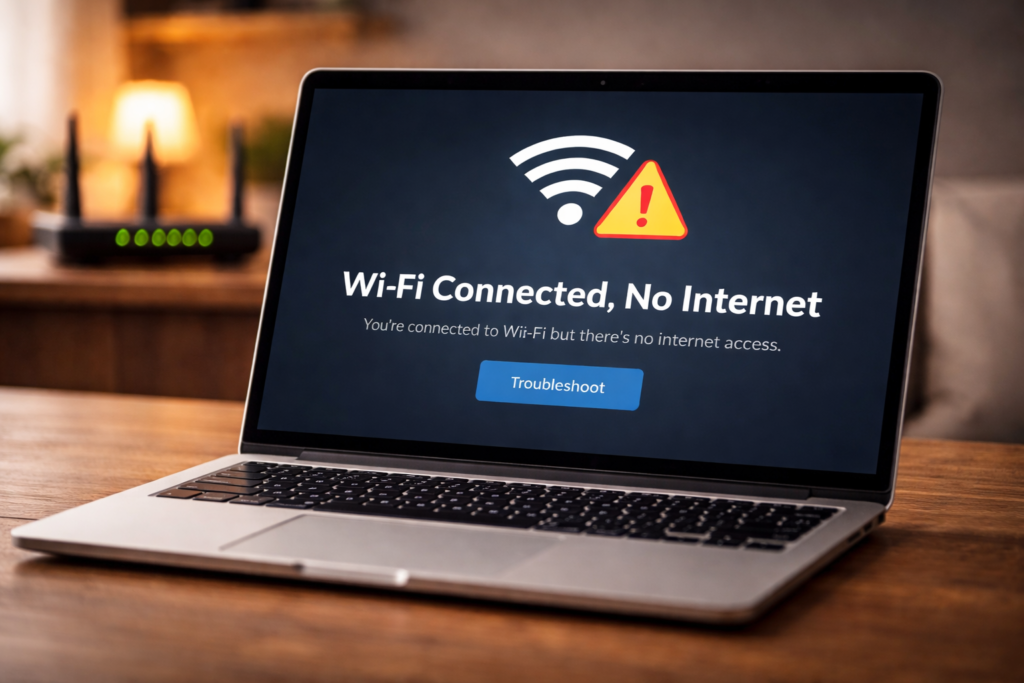
You’re sitting there, phone or laptop in hand, and the WiFi symbol is sitting right there at the top of your screen fully connected, looking perfectly fine. But nothing loads. No YouTube. No Google. Not even a simple webpage.
It’s one of the most frustrating tech problems out there and honestly, it makes zero sense to most people. How can you be connected to WiFi but have no internet?
Here’s the short answer: your device connected to your router just fine, but your router itself lost its connection to the internet. Think of it like getting into your car, starting the engine but the road ahead is blocked. You’re in the vehicle. You’re just not going anywhere.
The good news? WiFi connected but no internet is one of the most fixable tech problems there is. Most of the time, you’re back online in under 10 minutes. This guide covers every possible cause and every real fix in plain, simple language anyone can follow.
Let’s get you back online.
Table of Contents
- Why Does This Happen?
- Quick Fixes to Try First
- How to Fix It on Windows
- How to Fix It on iPhone & Android
- How to Fix It on Mac
- Router & Modem Fixes
- Advanced Fixes for Stubborn Problems
- Pro Tips to Prevent This Problem
- FAQs About WiFi Connected but No Internet
- Final Thoughts
Why Does This Happen?
The Real Reason Your WiFi Shows Connected but Has No Internet
Before jumping into fixes, it helps to understand what’s actually going on. Because once you get it the fixes make a lot more sense.
Your home network has two separate parts working together. First, there’s your local network your router, your devices, all talking to each other inside your home. Second, there’s the internet connection your router talking to your ISP’s servers out in the world.
When your device says “connected” it means part one is working perfectly. Your phone or laptop found your router and joined the local network successfully. But part two the link between your router and the actual internet has broken down somewhere.
So the problem could be sitting in one of several places. Your device. Your router. Your modem. Your ISP’s line. Or even a software setting that got confused somewhere along the way.
That’s why “WiFi connected but no internet” has so many different fixes because it has so many different causes.
Most Common Causes at a Glance
- ISP outage in your area
- Router or modem needs a restart
- IP address conflict on your network
- DNS server problem
- Incorrect network settings on your device
- Outdated network drivers (Windows)
- VPN or firewall blocking the connection
- Router firmware issue
- Physical cable problem between modem and router
Don’t worry you don’t need to understand all of these right now. Just work through the fixes below in order and you’ll find yours.
[IMAGE: Laptop showing WiFi connected but no internet error screen Alt text: ” error on laptop screen”]
Quick Fixes to Try First
Start Here Before Anything Else
These take less than 5 minutes and solve the problem more often than you’d think. Seriously don’t skip these.
1. Check if It’s Just One Website or App Open three or four different websites. If one loads but another doesn’t, the problem might be with that specific site not your internet at all. Try google.com, youtube.com, and bbc.com. If none load, keep going.
2. Check for an ISP Outage Switch to mobile data on your phone and search “[Your ISP name] outage today.” Or check their official app or social media. If there’s a known outage, nothing you do will fix it you just have to wait.
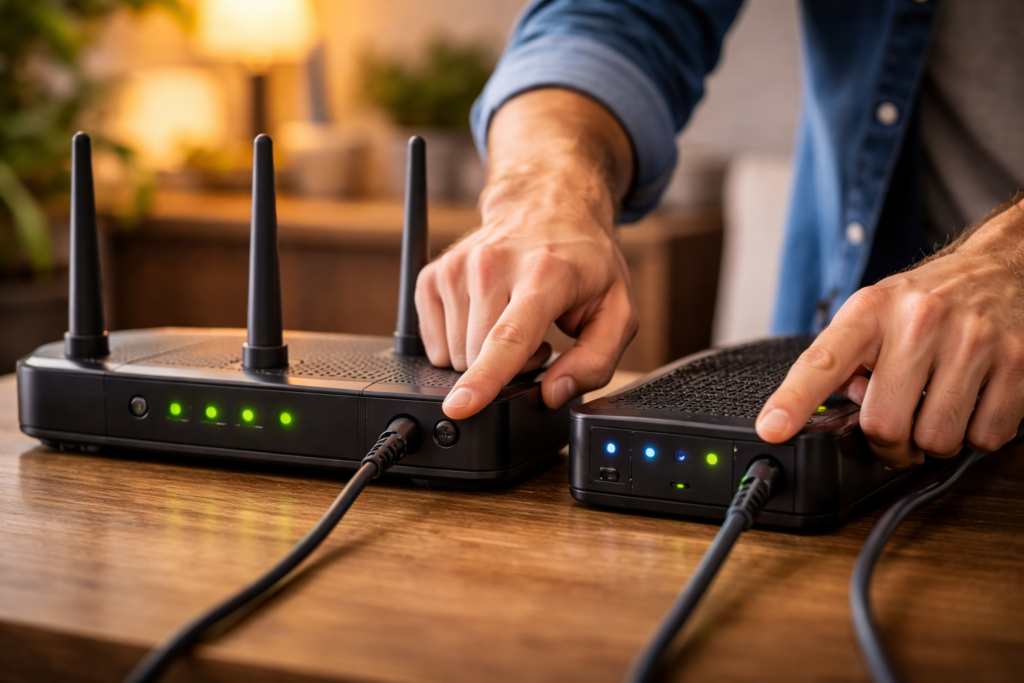
3. Restart Everything In the Right Order This is the fix that works most often and most people do it wrong. Here’s the correct sequence:
- Turn off your device (phone, laptop, etc.)
- Unplug your modem first wait 30 seconds
- Unplug your router next wait 30 seconds
- Plug the modem back in wait 60 seconds until its lights stabilize
- Plug the router back in wait another 60 seconds
- Turn your device back on and reconnect
That order matters. Modem first, router second. Giving each device time to fully restart before the next one powers up makes a real difference.
4. Forget and Reconnect to the WiFi Network On your device, go to WiFi settings, find your network, and select “Forget.” Then reconnect from scratch by entering your password again. This clears any corrupted connection data your device might be holding onto.
How to Fix It on Windows
Windows-Specific Fixes That Work
If the quick fixes didn’t do it and you’re on a Windows PC or laptop, these steps target problems specific to Windows networking.
Run the Built-In Network Troubleshooter
Windows has a built-in tool for exactly this problem. Right-click the WiFi icon in your taskbar and select “Troubleshoot problems.” It’s not perfect, but it catches common issues like IP conflicts and DNS errors automatically.
Flush Your DNS Cache
This sounds technical but it takes about 30 seconds:
- Press Windows key + R, type cmd, hit Enter
- Type:
ipconfig /flushdnsand press Enter - Type:
netsh winsock resetand press Enter - Restart your computer
A flushed DNS cache forces Windows to fetch fresh address information instead of using old, possibly broken cached data. This fixes the “no internet” problem surprisingly often.
Release and Renew Your IP Address
In that same Command Prompt window:
- Type:
ipconfig /releasepress Enter - Type:
ipconfig /renewpress Enter - Close and restart
This makes Windows request a fresh IP address from your router solving IP conflict issues that silently break internet access.
Update Your Network Adapter Driver
Right-click the Start button, go to Device Manager, expand “Network Adapters,” right-click your WiFi adapter and select “Update driver.” Outdated drivers cause all kinds of connection weirdness that’s hard to diagnose any other way.
How to Fix It on iPhone & Android
Mobile Fixes for WiFi Connected but No Internet
Phones have their own quirks. Here’s what works specifically for mobile devices.
Toggle Airplane Mode Swipe into your quick settings and turn Airplane Mode on for 10 seconds, then off again. It forces your phone to completely reset all wireless connections — WiFi, cellular, Bluetooth. Quick, easy, works more often than it should.
Forget and Rejoin the Network Go to Settings → WiFi → tap your network name → Forget. Then reconnect. This clears any authentication or IP issues stored for that network.
Reset Network Settings This is a slightly bigger step but very effective. On iPhone: Settings → General → Transfer or Reset iPhone → Reset → Reset Network Settings. On Android: Settings → General Management → Reset → Reset Network Settings.
Important this will forget all saved WiFi passwords, so make sure you know yours before doing this.
Check Your Date and Time Settings This one surprises people. If your phone’s date and time are wrong, SSL certificates fail and most websites won’t load — even though you’re technically connected. Make sure Settings → General → Date & Time is set to automatic.
How to Fix It on Mac
Mac Users — Try These First
Macs have a couple of specific fixes worth knowing.
Renew DHCP Lease Go to System Settings → Network → WiFi → Details → TCP/IP → click “Renew DHCP Lease.” This gives your Mac a fresh IP address without disconnecting from WiFi — often fixes the no-internet problem instantly.
Change Your DNS to Google’s Public DNS Go to System Settings → Network → WiFi → Details → DNS. Click the + button and add these two addresses:
- 8.8.8.8
- 8.8.4.4
These are Google’s public DNS servers. They’re fast, reliable, and free. If your ISP’s default DNS servers are having issues, switching to these often restores internet access immediately.
Create a New Network Location In Network settings, click the dropdown at the top that says “Location” and select “Edit Locations.” Add a new location, name it anything, and switch to it. This resets all network configurations cleanly — sometimes that’s all it takes.
Router & Modem Fixes
When the Problem Is the Hardware, Not the Device
If the problem shows up on every device in your home — phone, laptop, tablet — the issue is definitely with your router or modem, not any individual device.
| Problem | Likely Cause | Fix |
|---|---|---|
| All devices affected | ISP outage or router issue | Check outage + restart router |
| One device affected | Device-specific setting | Fix on that device only |
| Intermittent drops | Overheating or old firmware | Update firmware + add ventilation |
| Red light on router | ISP connection lost | Restart modem first, then router |
| Slow but connected | DNS issue or ISP throttling | Change DNS servers |
Check Physical Cables The ethernet cable running from your wall to your modem — unplug it from both ends and plug it back in firmly. A slightly loose connection here kills internet access for the entire house while leaving local WiFi working perfectly.
Log Into Your Router and Check WAN Status Type 192.168.1.1 or 192.168.0.1 into your browser. Log in with your router’s admin credentials (often printed on the bottom of the router). Look for “WAN Status” or “Internet Status.” If it shows “Disconnected” — the problem is between your router and your ISP.
Update Router Firmware While logged into your router admin panel, find the firmware or software update section. Install any available updates and restart. Outdated firmware causes connection problems that are almost impossible to diagnose any other way.
Advanced Fixes for Stubborn Problems
When Nothing Else Is Working
Okay you’ve tried everything above and you’re still staring at that “no internet” message. Here are the deeper fixes for stubborn cases.
Disable Your VPN If you use a VPN, turn it off completely and test your connection. VPNs route your traffic through external servers if those servers are down or misconfigured, they can block all internet access while your WiFi shows perfectly connected.
Check Your Firewall and Security Software Sometimes antivirus or firewall software gets overzealous and starts blocking internet traffic. Temporarily disable your security software, test your connection, then re-enable it. If that was the problem, check the software’s settings for blocked connections.
Factory Reset Your Router Last resort but it works for firmware corruption and configuration problems. Find the pinhole reset button on your router, hold it for 10 seconds with a paperclip, and let it fully restart. You’ll need to set up your WiFi name and password again from scratch.
Contact Your ISP If you’ve genuinely tried everything and multiple devices still show WiFi connected but no internet — call your ISP. Tell them everything you’ve tried. They can check line quality, signal levels, and account status from their end that you simply can’t access yourself.
Pro Tips to Prevent This Problem
A few habits that keep this problem from coming back:
- Restart your router once a week. Set a reminder. Weekly restarts prevent memory buildup and keep firmware running cleanly. It takes two minutes and saves hours of troubleshooting.
- Use Google or Cloudflare DNS permanently. Your ISP’s default DNS servers go down more than you’d think. Switching to 8.8.8.8 (Google) or 1.1.1.1 (Cloudflare) on your router gives you faster, more reliable DNS resolution across every device in your home.
- Keep your router firmware updated. Check every couple of months. Most modern routers have an auto-update option — turn it on and forget about it.
- Give your router proper ventilation. Overheating causes all kinds of intermittent connection problems. Keep it somewhere open, elevated off carpet, away from other electronics.
- Invest in a decent router if yours is old. Routers older than 4 years struggle with modern internet demands. If you’re constantly troubleshooting, an upgrade might be the most effective fix of all.
FAQs About WiFi Connected but No Internet
Why does my phone say WiFi connected but no internet? Your phone successfully joined your local WiFi network but your router lost its connection to your ISP. Start by restarting your router and modem. If it only happens on your phone but other devices work fine, the issue is device-specific try forgetting and rejoining the network or resetting network settings.
Why does this keep happening repeatedly? Recurring “no internet” issues usually point to an unstable ISP connection, an overheating router, or outdated firmware. Contact your ISP to check line stability and consider updating or replacing your router if it’s more than a few years old.
Does changing DNS really fix no internet issues? Yes more often than people expect. If your ISP’s DNS servers are slow or temporarily down, your device can’t translate website names into addresses, so nothing loads even though your connection is technically working. Switching to Google’s DNS (8.8.8.8) fixes this immediately.
Why does my laptop have no internet but my phone works fine? The problem is specific to your laptop not your router or ISP. On Windows, try flushing DNS, releasing and renewing your IP, or updating your network adapter driver. On Mac, try renewing your DHCP lease or changing DNS settings.
Can a VPN cause WiFi connected but no internet? Absolutely. A VPN routes all your traffic through external servers. If those servers go down, your internet stops working while your WiFi stays connected. Always try disabling your VPN first when troubleshooting this problem.
How long should I wait after restarting my router? At least 2 full minutes after plugging it back in. Most people wait 20 seconds and then wonder why it’s not working yet. Give the router time to fully boot up and re-establish its connection to your ISP before testing.
Final Thoughts
WiFi connected but no internet is annoying no question. But it’s also almost always fixable, usually in just a few minutes, without calling anyone or spending a single penny.
Start with the basics every time: check for an ISP outage, restart your modem and router in the right order, and try forgetting and rejoining your WiFi network. Those three steps alone will solve the problem the vast majority of the time.
If you’re still stuck after working through this guide your ISP is the next call to make. Sometimes the issue is on their end and no amount of home troubleshooting will change that.
Save this page for next time. Because this problem has a funny way of showing up at the worst possible moment and now you’ll know exactly what to do when it does.
Did one of these fixes work for you? Drop a comment below and tell us which one did the trick — it helps everyone else who lands here with the same problem! 👇
Router Blinking Red Light? Here’s How to Fix it