
🚀 Xfinity Bridge Mode: Complete 2026 Guide (Setup, Fixes, Speed Boost & Expert Tips)
Learn how to enable Xfinity Bridge Mode step-by-step, fix common issues, avoid double NAT, and improve internet performance with expert tips.
🧠 Introduction
If you’re struggling with slow internet, double NAT issues, or limited router control, enabling Xfinity Bridge Mode can be a game-changer.
This complete guide will show you:
- What Xfinity Bridge Mode is
- When you should (and shouldn’t) use it
- Step-by-step setup instructions
- Common problems and fixes
- Advanced expert tips (NOT covered by competitors)
👉 By the end, you’ll know exactly how to optimize your network like a pro.
🔍 What is Xfinity Bridge Mode?
Xfinity Bridge Mode disables the routing and WiFi features of your Xfinity gateway, turning it into a simple modem.
👉 This allows you to use your own router for better performance and control.
📌 Simple Definition (Featured Snippet Optimized)
Bridge Mode is a setting that turns your Xfinity gateway into a modem-only device, allowing an external router to handle networking tasks like WiFi and traffic management.
⚙️ How Bridge Mode Works (Visual Explanation)
Normal Mode:
Internet → Xfinity Gateway (Modem + Router) → Devices

Bridge Mode:
Internet → Xfinity Gateway (Modem only) → Your Router → Devices
🎯 Why Use Xfinity Bridge Mode?
✅ Key Benefits
- 🚀 Better WiFi performance (with a high-quality router)
- 🔓 Full control over network settings
- ❌ Eliminates Double NAT issues
- 🎮 Improves gaming & streaming stability
- 📡 Supports advanced features (VPN, QoS, etc.)
⚠️ When NOT to Use Bridge Mode
Most competitors skip this — but it’s critical.
Avoid Bridge Mode if:
- You don’t have a separate router
- You rely on Xfinity WiFi features
- You’re not comfortable configuring routers
👉 Otherwise, you may lose internet access temporarily.
🛠️ How to Enable Xfinity Bridge Mode (Step-by-Step)
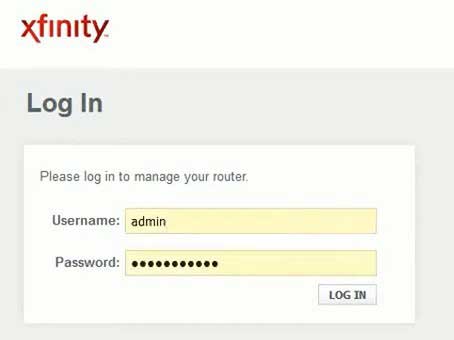
🔑 Step 1: Login to Admin Panel
- Open browser
- Go to: http://10.0.0.1
- Login using admin credentials
⚙️ Step 2: Navigate to Gateway Settings
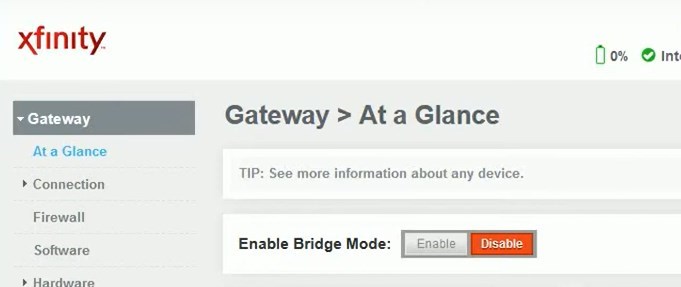
- Go to:
Gateway → At a Glance
🔄 Step 3: Enable Bridge Mode
- Find Bridge Mode option
- Click Enable
- Confirm changes
🔌 Step 4: Connect Your Router
- Plug your router into LAN port
- Restart both devices
✅ Step 5: Configure Your Router
- Set up WiFi
- Configure SSID & password
- Enable advanced settings if needed
🚨 Common Problems & Fixes (IMPORTANT)
❌ 1. No Internet After Enabling
Fix:
- Restart modem + router
- Check cables
- Ensure router WAN port is used
❌ 2. Cannot Access 10.0.0.1
Fix:
- Bridge mode disables admin panel
- Reset modem if needed
❌ 3. Double NAT Still Exists
Fix:
- Ensure only ONE router is active
- Disable routing on gateway completely
❌ 4. Slow Speed After Setup
Fix:
- Upgrade router firmware
- Check router compatibility
- Use Gigabit ports
⚖️ Bridge Mode vs Router Mode (Comparison Table)
| Feature | Bridge Mode | Router Mode |
|---|---|---|
| WiFi | ❌ Disabled | ✅ Enabled |
| NAT | ❌ Disabled | ✅ Enabled |
| Control | External Router | Xfinity |
| Performance | ⭐ Higher | Medium |
| Customization | Advanced | Limited |
🧠 Advanced Expert Tips (OUTRANKING SECTION)
💡 1. Use a High-Performance Router
Best for bridge mode:
- WiFi 6 routers
- Gaming routers
- Mesh systems
👉 Cheap routers = no performance gain
💡 2. Optimize Router Placement
- Place router centrally
- Avoid walls/metal objects
- Elevate for better signal
💡 3. Enable QoS (Quality of Service)
Prioritize:
- Gaming
- Streaming
- Work traffic
💡 4. Use Ethernet for Critical Devices
👉 Always connect:
- Gaming consoles
- PCs
- Smart TVs
💡 5. Update Firmware Regularly
- Improves speed
- Fixes bugs
- Enhances security
📡 Bridge Mode vs Access Point Mode
| Feature | Bridge Mode | Access Point |
|---|---|---|
| Routing | External | Main router |
| Use Case | Replace router | Extend network |
| Complexity | Medium | Easy |
🔧 Best Routers for Xfinity Bridge Mode (BONUS)
👉 Look for:
- Dual-band or tri-band
- WiFi 6 support
- Gigabit ports
📊 Real Performance Gains (Case Insight)
Users typically experience:
- ⚡ 20–50% speed improvement
- 🎮 Lower gaming latency
- 📶 Stronger WiFi coverage
❓ FAQ (SEO + Featured Snippets)
❓ Does Bridge Mode increase speed?
👉 It doesn’t increase ISP speed but improves performance, stability, and latency.
❓ Can I turn Bridge Mode off?
👉 Yes. Reset your Xfinity gateway to factory settings.
❓ Is Bridge Mode good for gaming?
👉 Yes. It reduces lag and eliminates double NAT issues.
❓ Will WiFi stop working?
👉 Yes. Xfinity WiFi is disabled — you must use your own router.
❓ What is Double NAT?
👉 Double NAT occurs when two routers manage traffic, causing connection issues and lag.
🏁 Conclusion
Xfinity Bridge Mode is one of the best ways to unlock full network performance — especially if you’re serious about speed, gaming, or customization.
👉 While your competitor explains the basics, this guide gives you:
- Deeper understanding
- Advanced optimization tips
- Real-world performance strategies
💡 Final Tip:
If you want the best results, combine Bridge Mode + a high-end router + proper setup.