Is your router blinking red light and internet is down? Don’t panic. Here are the real reasons it happens and exactly how to fix it step by step!
Router Blinking Red Light: Causes & How to Fix It Fast
Your internet was working perfectly fine. Then suddenly nothing. You glance over at your router and there it is. That angry little red light, blinking at you like it’s personally offended.
Sound familiar?
A router blinking red light is one of the most common tech problems people face at home, and honestly, it causes way more panic than it should. The good news? Most of the time, it’s not as serious as it looks. In fact, the majority of red light issues can be fixed in under 10 minutes no technician required.
This guide will walk you through exactly why your router is showing a red light, what each blinking pattern usually means, and how to fix it yourself step by step, in plain English. No technical jargon, no confusing instructions.
Let’s get your internet back up.
Table of Contents
- What Does a Blinking Red Light on a Router Mean?
- Common Causes of Router Red Light
- How to Fix Router Blinking Red Light Step by Step
- Red Light on Specific Router Brands
- When to Call Your Internet Provider
- How to Prevent Red Light Issues in the Future
- Pro Tips From People Who’ve Fixed This Before
- FAQs About Router Blinking Red Light
- Final Thoughts
What Does a Blinking Red Light on a Router Mean?
It’s Your Router’s Way of Saying “Something’s Wrong”
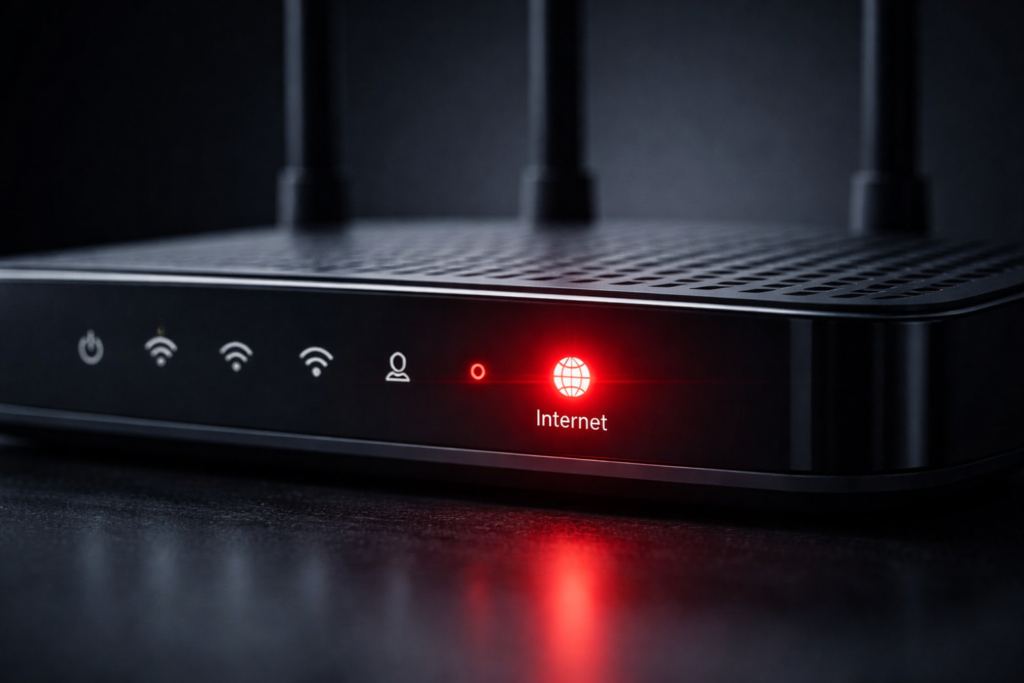
Think of your router’s lights like a mood ring. Green or white usually means everything’s happy. Orange might mean it’s warming up or updating. But red? Red means something needs your attention.
A router blinking red light typically signals one of three things — a connection problem between your router and your ISP (Internet Service Provider), a hardware issue with the device itself, or a temporary glitch that a simple restart will fix.
The tricky part is that “red light” doesn’t mean the exact same thing across every router brand. A blinking red on a Netgear router might mean something slightly different than a solid red on a TP-Link. But the general categories of causes? Those are pretty universal.
Blinking vs. Solid Red — Does It Matter?
Yes, actually. And most people don’t realize this.
A blinking red light usually means the router is actively trying to do something — connect to the internet, reboot, or signal an ongoing issue. A solid red light often means it has given up trying and hit a hard error state. Both need fixing, but a blinking red is often easier to resolve than a solid one.
Common Causes of Router Red Light
Why Is This Happening to You?
Here’s the thing most people miss — the red light itself isn’t the problem. It’s just the symptom. The real issue is somewhere underneath. Here are the most common reasons your router is throwing a red light:
1. ISP Outage in Your Area This is actually the most common cause, and it has nothing to do with your router at all. Your ISP’s servers go down, your router loses its connection, and — red light. Simple as that. Before you do anything else, check if there’s an outage in your area.
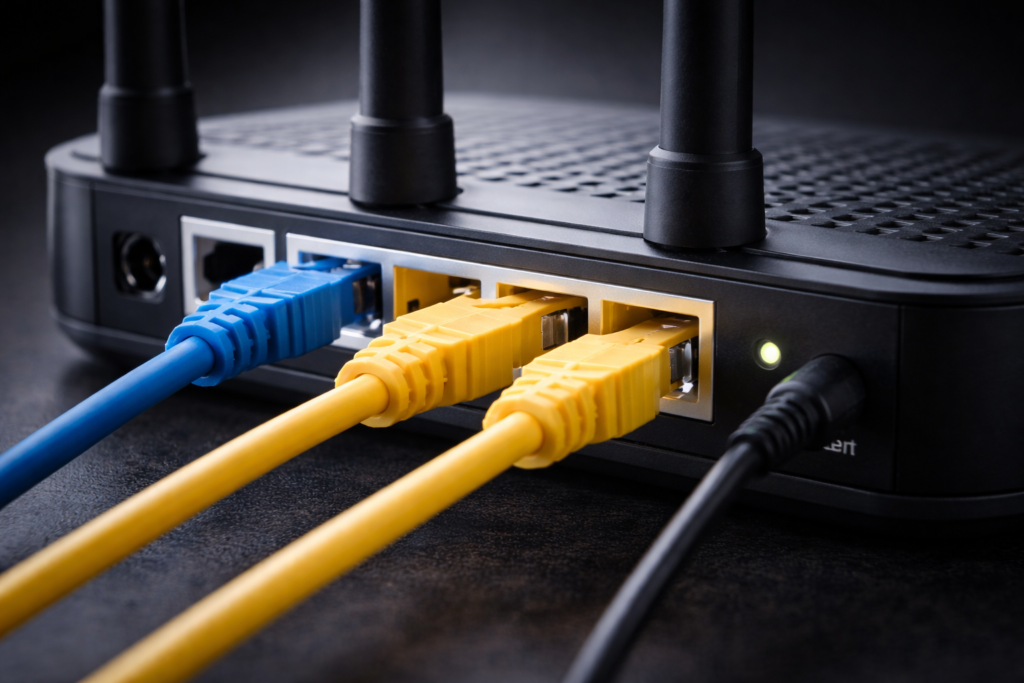
2. Loose or Damaged Cables That cable running from your wall to your router? If it’s slightly loose, bent, or damaged, your router won’t get a stable signal. It’s one of those embarrassingly simple fixes that solves the problem more often than you’d expect.
3. Router Needs a Restart Routers are small computers. Like any computer, they occasionally get stuck, overheat, or hit a software glitch. A proper restart — not just flicking the power switch, but a full 30-second power cycle — clears most temporary errors.
4. Firmware is Outdated If your router’s software hasn’t been updated in a while, it can start behaving strangely. Some routers show a red light specifically to indicate a firmware issue.
5. Hardware Failure Less common, but it happens. If your router is old (3+ years) and nothing else fixes the red light, the hardware itself might be failing.
6. Overheating Routers need airflow. If yours is stuffed in a cabinet, sitting on carpet, or surrounded by other electronics — it can overheat and throw a red light as a warning.
How to Fix Router Blinking Red Light — Step by Step
The Fix That Works 80% of the Time
Before anything else, try this. It’s stupidly simple and it works more often than people expect.
Step 1: Check for an ISP Outage Go to your phone’s mobile data (not WiFi) and search “[Your ISP name] outage” or check their official app. If there’s a known outage, all you can do is wait. No amount of restarting will fix a problem on their end.
Step 2: Power Cycle Your Router Properly This isn’t just turning it off and on again. Do it right:
- Unplug the power cable from the back of the router
- Wait a full 30 seconds — not 5, not 10. Thirty.
- Plug it back in
- Wait 2 minutes for it to fully boot up
That 30-second wait lets the router fully discharge and clear its memory. Most people skip this and wonder why the restart didn’t work.
Step 3: Check All Your Cables Unplug every cable — power, ethernet, coaxial — and plug them back in firmly. Make sure nothing is bent, frayed, or damaged. Pay special attention to the cable coming from your wall or modem into the WAN port of your router.
Step 4: Check for Overheating Touch the top of your router. Is it very hot? Move it somewhere with better airflow — off the carpet, out of enclosed spaces, away from other heat sources. Give it 15 minutes to cool down, then restart it.
Step 5: Update Your Router’s Firmware Log into your router’s admin panel (usually by typing 192.168.1.1 or 192.168.0.1 in your browser). Look for a “Firmware Update” or “Software Update” section. If there’s an update available, install it.
Step 6: Factory Reset as a Last Resort If nothing else works, a factory reset will restore your router to its original settings. Look for a small reset button on the back — usually a pinhole. Hold it for 10 seconds with a paperclip. Note: this will erase your WiFi name and password, so you’ll need to set those up again.
Red Light on Specific Router Brands
Because Not All Routers Are the Same
Different brands handle red lights slightly differently. Here’s a quick breakdown:
| Router Brand | Red Light Meaning | Quick Fix |
|---|---|---|
| Netgear | No internet / ISP connection lost | Restart router + check cables |
| TP-Link | No WAN connection or firmware issue | Power cycle + firmware update |
| Linksys | Hardware error or overheating | Cool down + factory reset |
| Asus | Internet connection failure | Check ISP + restart |
| Xfinity/Comcast | Activation issue or signal problem | Call ISP if restart fails |
| AT&T | Broadband connection lost | Restart gateway + check DSL cable |
Honestly, regardless of brand — always start with a restart and cable check. Those two steps alone fix the problem about 70% of the time.
When to Call Your Internet Provider
Sometimes It Really Isn’t You
You’ve restarted. You’ve checked cables. You’ve let it cool down. The red light is still there. At this point, it’s time to pick up the phone and call your ISP. Here’s when that call is definitely necessary:
- The red light persists after a full factory reset
- Your ISP’s outage checker shows no issues in your area but you still have no connection
- The cable coming from your wall looks physically damaged
- You recently had construction, storms, or physical damage near your home
- Your router is more than 3–4 years old and showing signs of failure
When you call, tell them exactly what you’ve already tried. This saves time and usually skips you past the basic troubleshooting scripts they read from.
[IMAGE: Person calling internet service provider while looking at router — Alt text: “Customer calling ISP to report router red light internet connection issue”]
How to Prevent Red Light Issues in the Future
A Little Maintenance Goes a Long Way
Most router problems — including that dreaded red light — are preventable. Here’s what to do going forward:
- Restart your router once a week. Sounds excessive but it keeps things running smoothly and prevents memory buildup.
- Keep firmware updated. Enable automatic updates if your router supports it.
- Give it breathing room. Don’t enclose your router. Keep it in an open, ventilated spot.
- Use a surge protector. Power surges can damage routers silently over time. A basic surge protector is cheap insurance.
- Replace aging hardware. If your router is 4+ years old, consider upgrading. Technology moves fast and older routers struggle with modern internet speeds and demands.
Pro Tips From People Who’ve Fixed This Before
These aren’t in any manual. These come from real experience:
- Always check your ISP first — on your phone. So many people spend 30 minutes troubleshooting when there’s a neighborhood outage. Two minutes on mobile data saves all that frustration.
- The 30-second restart rule is real. Most people do a 5-second restart and call it done. The full 30-second power-off actually makes a difference — the router needs time to fully clear its state.
- Cables fail more than people think. Ethernet cables get bent, stepped on, and chewed by pets. If you’ve had the same cable for years, swap it out. They’re cheap and a bad cable causes more problems than most people realize.
- Position matters more than you’d expect. A router sitting on thick carpet with no airflow will overheat and throw errors regularly. Elevate it, give it space, and you’ll have fewer problems overall.
- Screenshot your router settings before a factory reset. Log into your admin panel and take photos of your settings — port forwarding rules, custom DNS, WiFi credentials. A factory reset wipes everything, and rebuilding from memory is painful.
FAQs About Router Blinking Red Light
Why is my router blinking red light even though internet is working? Some routers use red to indicate a partial connection — your local network might be working but the connection to your ISP is unstable. Run a speed test and check for packet loss. If internet seems fine, it may just be a firmware glitch — update and restart.
How long does it take for a router to fix itself after going red? If it’s an ISP outage, it could take anywhere from a few minutes to a few hours depending on the issue. If it’s a local problem like overheating, giving the router 15–20 minutes to cool down and then restarting usually resolves it quickly.
Will a factory reset fix the router blinking red light? It depends on the cause. A factory reset fixes software and configuration issues but won’t solve hardware failure or an ISP outage. Try all other steps first — a factory reset should be your last option since it erases all your settings.
Is a red light on my router dangerous? Not at all. It’s just an indicator light — your router isn’t going to catch fire or cause any safety issues. It simply means something in the connection chain isn’t working properly and needs attention.
My router keeps going red every few days. What’s wrong? Recurring red lights usually point to one of three things — an unstable signal from your ISP, an overheating router that keeps hitting thermal limits, or aging hardware that’s slowly failing. Contact your ISP to check line stability, and consider upgrading if your router is old.
Can a bad WiFi password cause a red light? No. WiFi credentials don’t affect the WAN connection between your router and your ISP. A red light is almost always about the internet connection itself, not your local WiFi settings.
Final Thoughts
A router blinking red light feels like a big deal in the moment — especially when you’re in the middle of work, a movie, or an important call. But the truth is, it’s almost always fixable without calling anyone or spending any money.
Start simple. Check for an ISP outage. Restart your router properly. Check your cables. Nine times out of ten, one of those three steps gets you back online.
And if none of that works — now you know exactly what to try next, in what order, and when it’s finally time to make that call to your provider.
Bookmark this page for next time — because let’s be honest, there will be a next time. And when that red light shows up again, you’ll know exactly what to do.
Got your internet back? Drop a comment below and let us know which fix worked for you — it helps other readers figure out their problem faster! 👇
[INTERNAL LINK: “Why Is My Internet So Slow? 10 Real Fixes That Work”] [INTERNAL LINK: “Best Budget Routers in 2025 That Actually Perform”] [EXTERNAL LINK: FCC Broadband Consumer Guide — understanding your internet connection]
[IMAGE: Happy person using laptop with green router light in background — Alt text: “Internet connection restored after fixing router red light issue”]