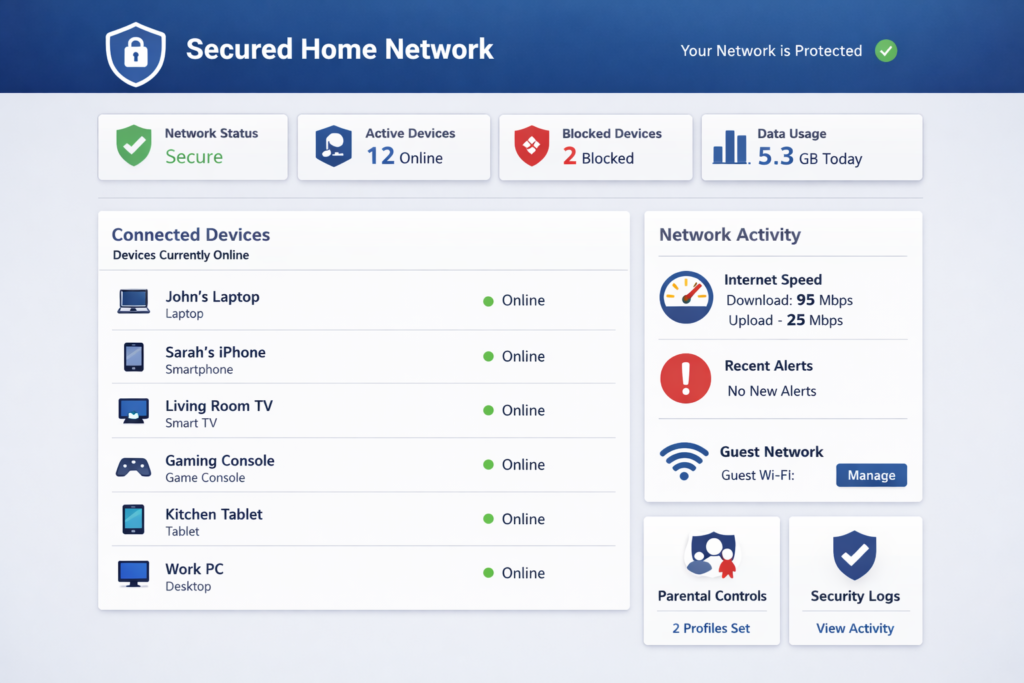
192.168.1.1 Router Login Complete Setup GuideLearn how to login to 192.168.1.1 router admin panel and set up your router correctly. Step-by-step guide for all brands easy, fast & beginner-friendly!
192.168.1.1 Router Login Complete Setup Guide
Let’s be honest most people set up their router once, forget about it completely, and only think about it again when something stops working. Sound familiar?
The problem is, your router’s admin panel is actually one of the most useful tools you have at home. It’s where you control your WiFi password, your network security, connected devices, parental controls, and a whole lot more. And almost all of it lives behind one simple address: 192.168.1.1.
If you’ve never logged in before don’t worry. It’s genuinely not complicated. And if you’ve tried before and couldn’t get in, this guide will walk you through exactly what went wrong and how to fix it.
By the time you finish reading, you’ll know how to access your router admin panel, set it up properly, secure your network, and troubleshoot any login problems that come up. No technical background needed.
Let’s get into it.
Table of Contents
- What Is 192.168.1.1?
- How to Login to 192.168.1.1
- Default Username and Password by Brand
- Complete Router Setup Guide
- How to Change Your WiFi Name and Password
- How to Secure Your Router Properly
- Common 192.168.1.1 Login Problems and Fixes
- Pro Tips for Managing Your Router
- FAQs About 192.168.1.1 Router Login
- Final Thoughts
What Is 192.168.1.1?
Your Router’s Home Address
Think of 192.168.1.1 as your router’s home address but on your local network instead of the internet. It’s called a default gateway IP address, and typing it into your browser is how you knock on your router’s door and access its control panel.
From that control panel often called the admin panel or admin dashboard you can control virtually everything about how your home network works. Who can connect, how fast they can go, what they can access, and how secure the whole thing is.
Most home routers use 192.168.1.1 as their default address. Some use 192.168.0.1 instead particularly TP-Link and some Netgear models. A few use 10.0.0.1 (common with Apple and some AT&T routers). If 192.168.1.1 doesn’t work for you, try those alternatives.
Is It Safe to Access?
Completely. You’re not accessing anything on the internet you’re accessing a page hosted by the router itself, only reachable from inside your home network. Nobody outside your home can reach it. It’s about as safe as opening a drawer in your own house.
How to Login to 192.168.1.1
Step-by-Step Login Process
This works on any device Windows, Mac, iPhone, Android. The process is the same everywhere.
Step 1: Connect to Your Router Make sure your device is connected to your home WiFi network or plugged in via ethernet cable. You can’t access the router admin panel from mobile data or a different network.
Step 2: Open Your Browser Open any web browser Chrome, Safari, Firefox, Edge. It doesn’t matter which one.
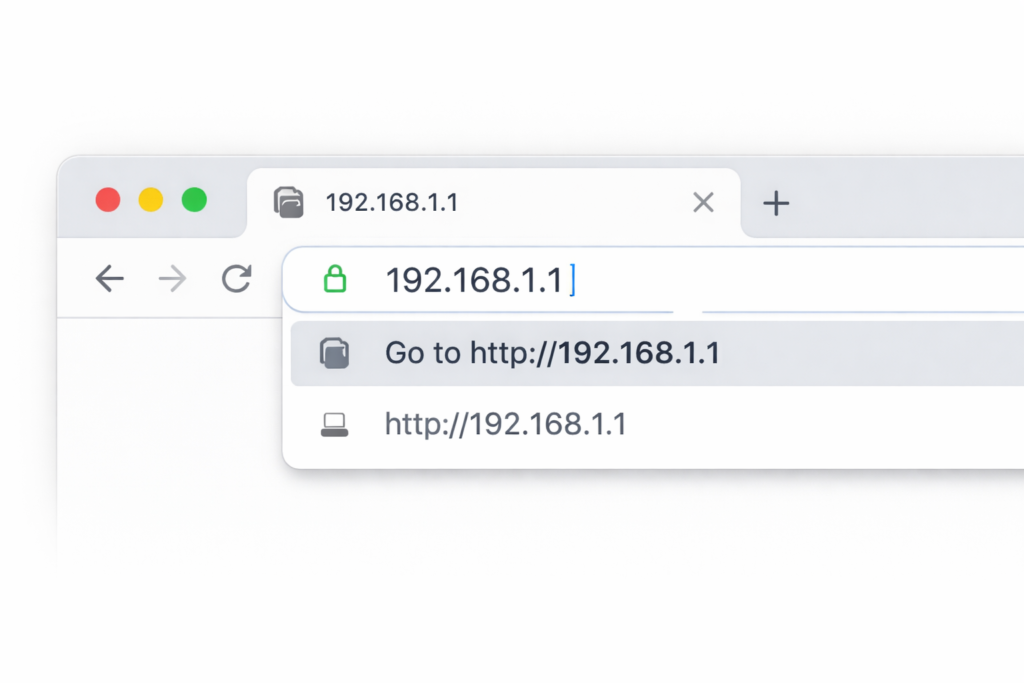
Step 3: Type the IP Address In the address bar at the very top of your browser not the search box type exactly:
192.168.1.1
Hit Enter. Do not type “www” before it. Do not search for it in Google. Type it directly in the address bar.
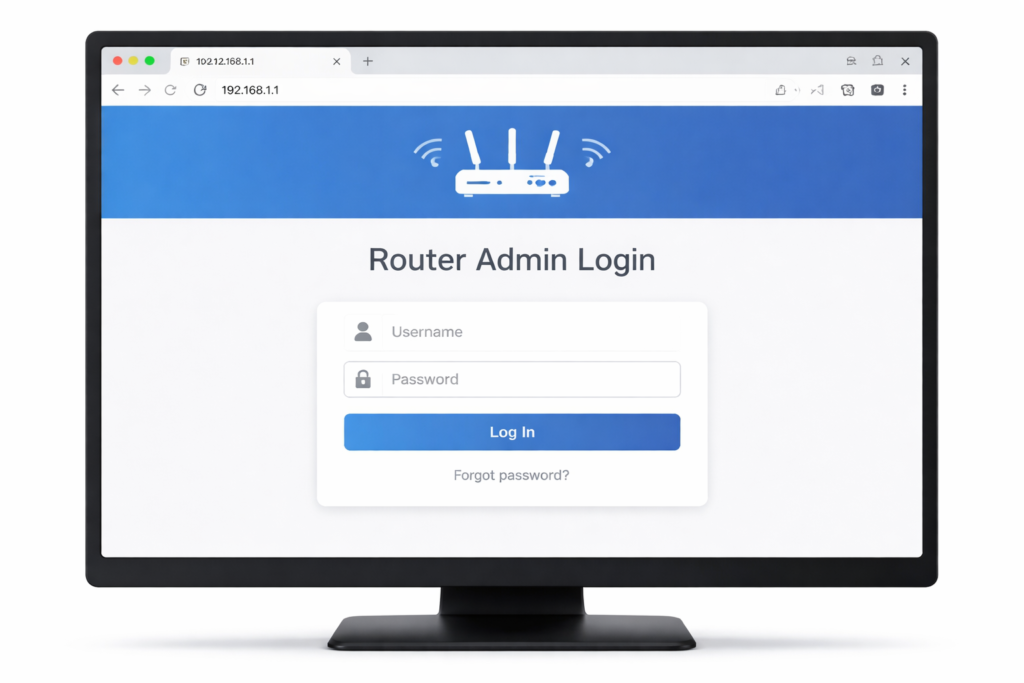
Step 4: Enter Your Login Credentials A login page will appear asking for a username and password. These are your router’s admin credentials not your WiFi password. By default, most routers use something simple like admin/admin or admin/password. Check the label on the bottom of your router for the exact defaults.
Step 5: You’re In Once logged in, you’ll see your router’s dashboard. It looks different depending on your brand and model, but the core options WiFi settings, security, connected devices are always there.
What if the Page Doesn’t Load? Try 192.168.0.1 instead. If neither works, open Command Prompt on Windows (search “cmd”) and type ipconfig look for “Default Gateway.” That number is your router’s actual address.
Default Username and Password by Brand
Can’t Remember Your Login? Start Here
Most routers come with a default username and password printed on a sticker on the bottom or back of the device. If that sticker is gone or unreadable, here are the most common defaults by brand:
| Router Brand | Default IP | Default Username | Default Password |
|---|---|---|---|
| Netgear | 192.168.1.1 | admin | password |
| TP-Link | 192.168.0.1 | admin | admin |
| Linksys | 192.168.1.1 | admin | admin |
| Asus | 192.168.1.1 | admin | admin |
| D-Link | 192.168.0.1 | admin | (blank) |
| Belkin | 192.168.2.1 | admin | (blank) |
| Huawei | 192.168.1.1 | admin | admin |
| ZTE | 192.168.1.1 | admin | admin |
| Tenda | 192.168.0.1 | admin | (blank) |
| Xfinity | 10.0.0.1 | admin | password |
If the default credentials don’t work, someone may have changed them previously. In that case, a factory reset will restore everything to defaults more on that in the troubleshooting section.
Complete Router Setup Guide
Setting Up Your Router the Right Way
Whether you just bought a new router or you’re reconfiguring an existing one, here’s how to set it up properly from scratch.
Initial Setup After First Login
The first time you log in especially after a factory reset most routers will launch a setup wizard automatically. Follow it through. It’ll walk you through:
- Selecting your connection type (most home users select DHCP or PPPoE)
- Entering your ISP credentials if required (your ISP provides these)
- Setting your WiFi network name and password
- Creating a new admin password
Don’t skip the setup wizard if it appears. It handles a lot of the technical configuration automatically.
Setting Up Your Internet Connection Type
This is the part where people sometimes get stuck. Your router needs to know how your ISP delivers internet to you. The most common types are:
DHCP (Dynamic IP) Most common for cable internet. Your router gets an IP address automatically from your ISP. No credentials needed.
PPPoE Common for DSL connections. You’ll need a username and password from your ISP.
Static IP Less common for home users. Your ISP gives you a fixed IP address and you enter it manually.
If you’re not sure which one you have, call your ISP and ask. They’ll tell you in 30 seconds.
Configuring Your WiFi Bands
Most modern routers broadcast on two frequencies 2.4GHz and 5GHz. Here’s the simple version of what each does:
2.4GHz Longer range, slower speeds, better at penetrating walls. Good for devices far from the router.
5GHz Shorter range, much faster speeds. Best for devices close to the router like streaming boxes and gaming consoles.
You can give them the same name (the router handles switching automatically) or different names if you want manual control over which band your devices use.
2.4GHz vs 5GHz WiFi — Which Should You Use
How to Change Your WiFi Name and Password
One of the Most Common Reasons People Log In
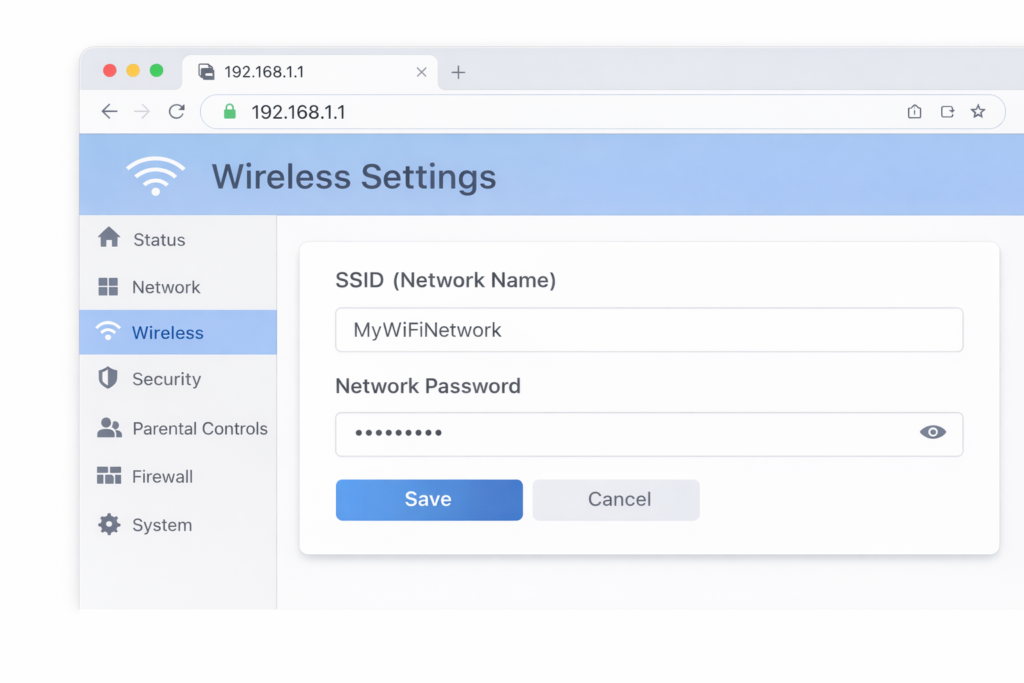
This is probably the number one reason most people access 192.168.1.1 to change their WiFi name or password. Here’s exactly how:
- Log into 192.168.1.1 using the steps above
- Look for Wireless Settings, WiFi Settings, or WLAN in the menu
- Find the field labeled SSID that’s your WiFi name. Change it to whatever you want
- Find the Password or Security Key field enter your new password here
- Make sure security is set to WPA2 or WPA3 never leave it on WEP or open
- Click Save or Apply
- Your router will restart briefly reconnect all your devices with the new password
Tips for a Good WiFi Password:
- At least 12 characters long
- Mix of letters, numbers, and symbols
- Something you can remember but others can’t guess
- Never use your address, name, or “password123”
How to Secure Your Router Properly
Most People Skip This Don’t Be One of Them
Here’s something most guides don’t tell you accessing 192.168.1.1 and changing your WiFi password is only half the job. Your router itself also needs to be secured. An unsecured router admin panel is a real vulnerability.
Change the Default Admin Password This is critical. If your admin password is still “admin” or “password” change it right now. Anyone on your network can log into your router and change whatever they want. Go to Administration → Password in your router settings and set something strong.
Disable Remote Management Most routers have a “Remote Management” option that lets people access your admin panel from outside your home network. Unless you specifically need this disable it. Look for it under Advanced Settings or Administration.
Enable the Router Firewall Most routers have a built-in firewall make sure it’s turned on. It’s usually found under Security settings and is enabled by default, but worth confirming.
Keep Firmware Updated Check for firmware updates every few months. Router manufacturers release updates to fix security vulnerabilities. An unpatched router is an open door. Find this under Administration → Firmware Update.
Disable WPS WiFi Protected Setup sounds convenient it lets devices connect with a button press instead of a password. But it has known security weaknesses. Disable it under Wireless settings unless you actively use it.
Common 192.168.1.1 Login Problems and Fixes
Can’t Get In? Here’s Why
Problem: Page doesn’t load at all Make sure you’re typing in the address bar not the search bar. Make sure you’re connected to your home network, not mobile data. Try 192.168.0.1 if 192.168.1.1 doesn’t work. Try a different browser.
Problem: Wrong username or password Check the sticker on the bottom of your router for default credentials. If someone changed them previously, you’ll need to factory reset the router press and hold the reset button (small pinhole on the back) for 10 seconds.
Problem: Page loads but looks broken Try a different browser or clear your browser cache. Some older router interfaces don’t display correctly in newer browsers.
Problem: Logged in but can’t save settings Try using a wired ethernet connection instead of WiFi when accessing the admin panel some routers drop the WiFi connection briefly when you save changes, interrupting the process.
Problem: Forgot the admin password (not WiFi password) Factory reset is your only option here. It restores all defaults including the admin password. You’ll need to set up your WiFi name and password again afterward.
Pro Tips for Managing Your Router
These are the things experienced network users actually do:
- Bookmark 192.168.1.1 in your browser. Sounds obvious but saves time every single time you need to access it.
- Screenshot your settings before making changes. Before you adjust anything significant, take a photo or screenshot of the current settings. If something breaks, you’ll know exactly what to restore.
- Set a static IP for important devices. Printers, smart TVs, gaming consoles assign them a fixed local IP address in your router’s DHCP settings. They’ll always have the same address, making network management much easier.
- Check connected devices regularly. Your router shows every device currently on your network. Review this list occasionally if you see something unfamiliar, someone may be using your WiFi without permission.
- Use the guest network feature. Most modern routers let you create a separate guest WiFi network. Give visitors access to this instead of your main network they get internet access but can’t see your other devices or files.
FAQs About 192.168.1.1 Router Login
What if 192.168.1.1 doesn’t open my router page? Your router might use a different default IP. Try 192.168.0.1 or 10.0.0.1. To find your exact router IP on Windows, open Command Prompt, type ipconfig, and look for “Default Gateway.” On Mac, go to System Settings → Network → WiFi → Details.
Is it safe to log into 192.168.1.1? Completely safe. It’s a local address only accessible from inside your home network. No one on the internet can reach it. You’re simply accessing a settings page hosted by your router itself.
What’s the difference between my WiFi password and my router admin password? Your WiFi password is what you enter on devices to join your network. Your router admin password is what you use to log into 192.168.1.1 and change router settings. They are completely separate and both should be strong and unique.
How do I find my router’s default username and password? Check the sticker on the bottom or back of your router it’s almost always printed there. If not, refer to the brand table in this guide or search “[your router brand] default login credentials.”
Will changing my WiFi password disconnect all my devices? Yes temporarily. Once you save the new password, all devices will be disconnected and will need to reconnect using the new password. It takes a few minutes to reconnect everything but causes no permanent issues.
How often should I change my router admin password? At minimum, change it from the default immediately and then update it once a year or any time you think someone unauthorized may have accessed your network.
Final Thoughts
Your router’s admin panel at 192.168.1.1 is genuinely one of the most powerful tools in your home — and one of the most ignored. Five minutes in there can dramatically improve your network security, fix connection problems, and give you real control over who uses your WiFi and how.
The login process itself is simple once you know what you’re doing. Type the address, enter the credentials, and you’re in. From there, change your default admin password, secure your wireless settings, and check for firmware updates. Those three steps alone make your home network significantly safer and more reliable.
Whether you came here to set up a brand new router, change your WiFi password, or troubleshoot a login problem hopefully you’ve got everything you need now.
Got a specific router model giving you trouble? Drop it in the comments and let’s figure it out together. 👇
“Router Blinking Red Light? Here’s How to Fix It Fast”