
Meta Description:
Learn how to find, enable, and use the wps-button-on-spectrum-router to quickly connect your devices. Step-by-step guide with troubleshooting and safety tips.
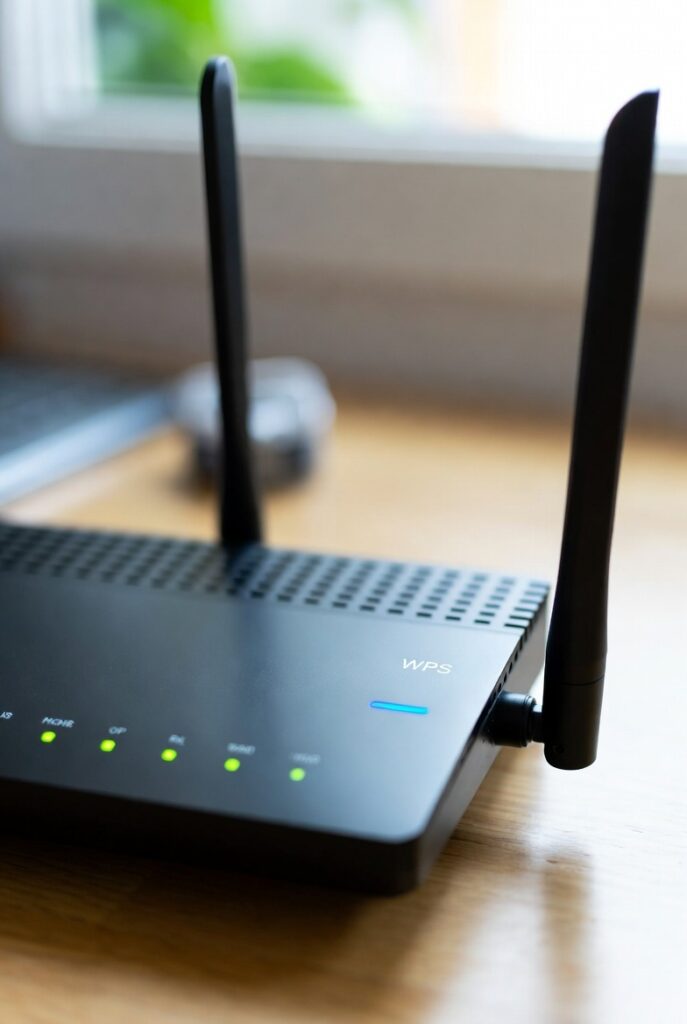
Introduction: What Is the WPS Button on a Spectrum Router and Why It Matters
If you’ve ever stared at your Spectrum router and noticed a small button labeled “WPS”, you might have wondered what it does. The WPS button on a Spectrum router—short for Wi-Fi Protected Setup—is a convenient feature designed to help you connect your wireless devices to your home WiFi network without typing long, complicated passwords.
Imagine you’ve just bought a new printer or smart home gadget. Instead of digging through your WiFi settings and typing your password letter by letter, WPS lets you connect instantly by pressing a button on your router and a corresponding button on your device. Within seconds, your device is securely connected to your WiFi network.
But while WPS (Wi-Fi Protected Setup) offers ease and speed, it also comes with some important considerations—from security concerns to compatibility issues with certain Spectrum router models. This guide will walk you through everything you need to know about the WPS button on your Spectrum router, including:
- ✅ What WPS actually means and how it works
- ✅ How to find the WPS button on your Spectrum router
- ✅ Step-by-step instructions to enable and use WPS
- ✅ Common issues and how to troubleshoot WPS problems
- ✅ Pros, cons, and alternative ways to connect your devices
This article is written for everyday users — whether you’re new to Spectrum or just looking to understand your router better. By the end, you’ll know exactly how to use (or safely avoid) the WPS feature on your Spectrum router and make informed choices about your WiFi connections.
What Does WPS Mean and How It Works on Routers
What Is WPS (Wi-Fi Protected Setup)?
WPS stands for Wi-Fi Protected Setup, a wireless network standard introduced in 2006 by the Wi-Fi Alliance. Its main goal is simple: to make connecting devices to your WiFi network fast, secure, and effortless. Instead of manually entering your WiFi password on every device, you can simply press the WPS button on your router and a corresponding button (or setting) on your device to establish a secure connection automatically.
Think of it as a shortcut for connecting devices — the router and your device communicate directly to exchange encryption details behind the scenes. This feature is particularly useful for smart TVs, printers, streaming devices, and WiFi extenders that don’t have full keyboards or easy ways to enter passwords.
How WPS Works on a Spectrum Router
When you use the WPS button on a Spectrum router, the process typically involves the Push-Button Connect (PBC) method. Here’s how it works step-by-step:
- Press the WPS button on your Spectrum router.
- This tells the router to begin searching for new WPS-enabled devices.
- You’ll often see a blinking LED light indicating the router is in WPS mode.
- On your device, choose the option to connect via WPS.
- For example, your printer or phone might show “Connect via WPS” or “Push-Button Setup.”
- The router and device exchange encryption keys automatically.
- You don’t have to type your WiFi password.
- Within 2 minutes, the device should be connected to your WiFi network.
This method uses WPA2 encryption (and in newer routers, WPA3), ensuring a safe, encrypted link between your router and the connected device.
⚙️ Technical Note:
The WPS button triggers a short authentication process (lasting around 120 seconds) using an 8-digit PIN internally. However, users never need to see or type this PIN during the push-button setup.
The Two Main WPS Connection Methods
| Method | How It Works | Typical Use Case |
|---|---|---|
| Push-Button Connect (PBC) | Press the WPS button on your router and then on your device within 2 minutes. | Fastest and most user-friendly method; used on Spectrum routers that support WPS. |
| PIN Entry | Enter an 8-digit WPS PIN (found on router label or in admin settings) into your device or router. | Used when devices don’t have a physical WPS button but still support WPS. |
Most Spectrum routers use the Push-Button method, as it’s simpler and safer. However, it’s good to understand both options — some devices, like printers, may ask for the WPS PIN instead.
Why Spectrum Routers Include a WPS Button
Spectrum includes a WPS button on many of its router models (especially older and mid-range routers) for user convenience. It eliminates the hassle of remembering long, complex WiFi passwords. This feature is particularly handy when setting up:
- Printers or smart home devices with no display
- WiFi extenders and boosters
- Streaming devices like Roku or Fire Stick
- IoT gadgets such as cameras, thermostats, and lights
🗣️ Example from Spectrum Community:
“I found the WPS button super helpful when connecting my HP printer. It took less than 10 seconds — no need to enter my long WiFi password.”
— Spectrum Customer, Community Forum
Still, while the WPS button on Spectrum routers adds convenience, users should understand that Spectrum has started phasing out physical WPS buttons on some newer models due to security concerns, which we’ll explore later in this post.
Security Considerations of Using WPS
While WPS offers simplicity, it’s not perfect. Cybersecurity experts have pointed out some known vulnerabilities in the WPS protocol — particularly with the PIN method. Hackers can potentially guess the 8-digit PIN through brute-force attacks, which is why many manufacturers, including Spectrum, disable or hide the WPS function in newer routers.
Security Pros and Cons of WPS:
| Pros | Cons |
|---|---|
| Quick and easy connection process | PIN method can be exploited by hackers |
| Eliminates need to type passwords | Some Spectrum routers disable WPS by default |
| Works with multiple devices | Not supported on all smart devices |
| Uses WPA2 encryption | Can be less secure than manual setup |
🔒 Pro Tip:
If you value security over convenience, use manual WiFi setup with a strong WPA2/WPA3 password and disable WPS in your router’s admin settings.
Summary of How WPS Works
- The WPS button on Spectrum routers allows quick device pairing through secure wireless authentication.
- It uses either the push-button or PIN connection method.
- While convenient, it comes with potential vulnerabilities, especially if the router’s WPS function is not updated or secured.
- Spectrum has moved away from emphasizing WPS in newer routers, preferring manual or app-based setup methods for improved safety.
Locating the WPS Button on Your Spectrum Router
If you’ve just unboxed your Spectrum router or looked around it trying to spot the WPS button, you’re not alone. Many Spectrum users wonder where the WPS feature is located—or if their router even has one. The placement and availability of the WPS button on a Spectrum router depend on the model, age, and firmware version.
Below, we’ll help you identify where to find it, what it looks like, and what to do if your Spectrum router doesn’t include a physical WPS button.
Where Is the WPS Button on a Spectrum Router?
The WPS button on Spectrum routers is typically located in one of the following places:
- Back panel: Most older and mid-range Spectrum routers (like the Sagemcom, Askey, and Arris models) feature a small WPS button on the back next to the Ethernet ports.
- Top or side panel: Some newer Spectrum-branded routers, particularly the all-black models, have the WPS button on the top or side surface for easier access.
- Integrated LED button: A few router models combine the WPS function with the Wi-Fi or Power LED button. You’ll usually see a two-arrow symbol forming a circle—that’s the universal WPS icon.
Here’s what the typical layout looks like:
| Router Model | WPS Button Location | WPS Symbol |
|---|---|---|
| Spectrum RAC2V1A (Sagemcom) | Back, near Ethernet ports | Two arrows in a circular shape 🔁 |
| Spectrum Wave 2 Router | Top panel | WiFi / WPS combined light |
| Spectrum WiFi 6 Router (SAX1V1R) | No physical WPS button | Accessible via admin interface |
| Spectrum Askey Model 5268 | Side panel | Labeled “WPS” or “Pair” |
💡 Tip: If you can’t find a button labeled “WPS,” look for the pairing symbol (two curved arrows) — that’s often Spectrum’s shorthand for WPS.
Not All Spectrum Routers Have a Physical WPS Button
Spectrum has phased out the physical WPS button on several newer router models—especially those that support WiFi 6 (802.11ax) technology. The main reason is security: the WPS protocol, though convenient, has known vulnerabilities that could allow unauthorized access if misused.
If your router doesn’t have a WPS button, don’t worry—you may still be able to use the feature through a digital or virtual WPS option in your router’s web interface.
How to Check If Your Spectrum Router Supports WPS
Follow these steps to confirm if your specific Spectrum router supports WPS functionality:
- Identify your router model.
- Look for a sticker on the bottom or back of your router. It usually lists the model name (e.g., “SAX1V1R,” “RAC2V1A,” etc.) and the serial number.
- Log in to the router’s admin portal.
- Open your browser and type:
192.168.1.1or192.168.0.1 - Log in using your credentials (default user:
admin, password:adminor printed on the router label).
- Open your browser and type:
- Navigate to Wireless Settings > Advanced > WPS.
- If the WPS option appears, your router supports the feature (even if it lacks a physical button).
- If you don’t see the option, WPS is likely disabled or unsupported on your firmware.
- Check the official Spectrum support page for your router model to confirm WPS capability.
📘 Case Study: Spectrum WiFi 6 Router
A user on Spectrum’s community forum reported their WiFi 6 SAX1V1R router didn’t have a physical WPS button. Upon logging into the admin portal, they discovered a virtual “Enable WPS” toggle in the Wireless settings—showing that newer routers use software-based WPS activation instead of physical buttons.
Visual Clues and Symbols to Identify the WPS Button
If you’re visually inspecting your router, here’s what to look for:
- Circular arrow icon: Two curved arrows chasing each other (♻️-like symbol).
- Label “WPS” or “Pair.”
- LED light: A small LED may blink when WPS mode is active (usually amber or white).
- Short press vs. long press: Holding for about 3–5 seconds activates WPS pairing mode, while a short tap may only toggle the light.
Why Spectrum May Remove or Disable the WPS Button
Spectrum (and other ISPs) have gradually removed the WPS feature on some routers for security and support reasons:
- Security risks: Hackers can exploit the WPS PIN system through brute-force attacks.
- Customer confusion: Many users mistakenly press WPS instead of reset or Wi-Fi toggle buttons.
- App-based setup: Spectrum now encourages customers to use the My Spectrum App for device management and connections, reducing the need for physical WPS buttons.
🗣️ Spectrum Tech Support Quote:
“WPS is convenient, but modern routers focus on stronger WPA3 encryption and app-based setup. We’ve moved away from physical WPS buttons to improve overall network security.”
— Spectrum Network Support, 2024
Summary: Finding the WPS Button on Spectrum Routers
- The WPS button on Spectrum routers is usually found on the back or side of older models.
- Newer WiFi 6 routers may not have a physical button but offer virtual WPS through admin settings.
- The WPS icon looks like two arrows in a circular loop or may simply say “Pair.”
- Always verify your router’s model and check its firmware settings for WPS functionality.
⚠️ Important Reminder:
If your Spectrum router doesn’t have a WPS button, don’t panic — you can still connect devices easily using your WiFi name (SSID) and password. The next section will walk you through enabling WPS manually or using it to connect your devices step by step.
How to Enable and Use the WPS Button on a Spectrum Router
Connecting devices to WiFi doesn’t have to be complicated. If your Spectrum router supports WPS (Wi-Fi Protected Setup), you can connect printers, smart TVs, and other devices in seconds—without typing your WiFi password.
Let’s break down exactly how to enable and use the WPS button on your Spectrum router, whether you have a physical button or need to access digital WPS controls through your router’s admin interface.
Step-by-Step Guide: Using the Physical WPS Button on Spectrum Routers
If your Spectrum router has a physical WPS button, here’s the simplest way to use it:
Step 1: Power on Your Router
Make sure your Spectrum router is plugged in and your WiFi network is working properly. The WiFi indicator light should be solid or blinking slowly.
Step 2: Locate the WPS Button
Find the WPS button on your router (usually on the back or side). It’s labeled “WPS” or shows the two circular arrows icon.
Step 3: Activate WPS Mode
Press and hold the WPS button for 3–5 seconds until you see the WPS LED light start blinking. This means your router is in pairing mode and ready to connect.
Step 4: Connect Your Device
Within 2 minutes, go to your device (printer, TV, smart plug, etc.) and:
- Choose “Connect via WPS” or “Push Button Connection” in the network settings.
- Wait as your device automatically connects to your Spectrum WiFi network.
Step 5: Verify the Connection
Once the device connects, the WPS light will stop blinking and turn solid. Your device should now appear in your router’s connected devices list.
✅ Example:
When connecting an HP Smart Printer, pressing the WPS button on both the router and the printer simultaneously automatically links the printer to your WiFi network — no password needed.
Step-by-Step Guide: Enabling WPS via Router Admin Interface (Virtual WPS)
If your router doesn’t have a physical WPS button, you can still enable the feature through your router’s admin portal. This process is sometimes referred to as “digital WPS” or “virtual WPS.”
Step 1: Log into Your Router
- Connect your computer or phone to your Spectrum WiFi network.
- Open a web browser and enter the IP address:
192.168.1.1or192.168.0.1 - Enter your login credentials. The default username is often
admin, and the default password is eitheradminor printed on the router’s sticker.
Step 2: Navigate to Wireless Settings
Once you’re logged in:
- Go to Wireless Settings or Advanced Settings.
- Look for an option labeled WPS, Wi-Fi Protected Setup, or Push Button Connection.
Step 3: Enable WPS
- Click the toggle or checkbox to enable WPS.
- You might see options for:
- Push Button Method (PBC)
- PIN Method
Choose Push Button for simplicity and better security.
Step 4: Start WPS Pairing
- Click Start or Activate to begin the WPS pairing process.
- Within 2 minutes, press the WPS button on your device or select “Connect via WPS” in its settings.
Step 5: Confirm Connection
After a few seconds, your device will automatically connect to your WiFi. You can verify this in your router’s Connected Devices list.
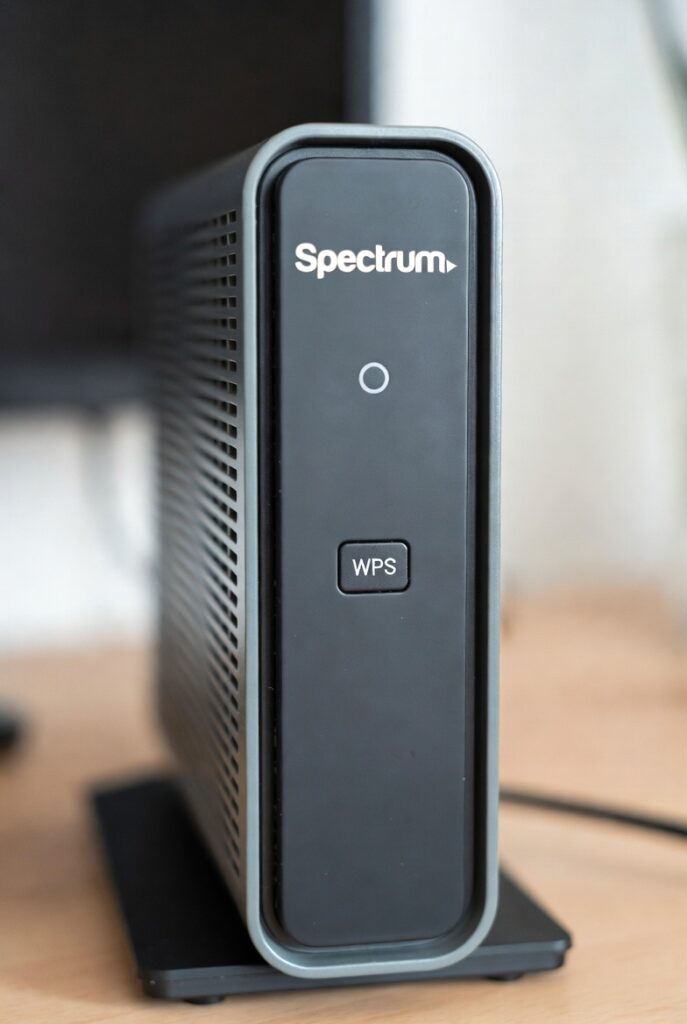
WPS Connection Example: Smart TV Setup
Here’s a practical walkthrough using a smart TV as an example device:
| Step | Action | Expected Result |
|---|---|---|
| 1 | Turn on your Spectrum router and TV | Both devices are powered on |
| 2 | Press the WPS button on your Spectrum router | Router enters pairing mode (light blinks) |
| 3 | On your TV, go to Network → WiFi → WPS Push Button | TV searches for the router |
| 4 | After 10–15 seconds | TV connects automatically |
| 5 | Check your TV’s WiFi settings | Network now shows “Connected” |
💡 Pro Tip:
If the device doesn’t connect, repeat the process. The WPS window stays active for only 2 minutes, so timing matters.
How Long to Hold the WPS Button
| Router Type | Hold Duration | LED Behavior |
|---|---|---|
| Spectrum RAC2V1A | 3 seconds | LED blinks amber |
| Spectrum Askey 5268 | 5 seconds | LED blinks white |
| Spectrum WiFi 6 (no button) | Use admin toggle | No LED indicator |
Holding the WPS button for too long (over 10 seconds) may reset WiFi settings on some models, so be cautious—press only for 3–5 seconds unless otherwise stated in your router manual.
WPS PIN Method (Alternate Option)
Some devices (like certain HP printers or older Android devices) might ask for a WPS PIN instead of a button press.
To find your WPS PIN:
- Log into your Spectrum router’s admin page.
- Navigate to Wireless > WPS Settings.
- The WPS PIN is typically displayed there or printed on your router’s back label.
- Enter that PIN into your device to connect.
⚠️ Security Warning:
The WPS PIN method is less secure than push-button WPS. If you use it, disable WPS afterward to prevent brute-force attacks.
Best Practices When Using WPS on Spectrum Routers
- Connect one device at a time to avoid pairing confusion.
- Keep devices close (within 5–10 feet) during setup for the strongest signal.
- Disable WPS once setup is complete if you’re concerned about security.
- Update router firmware regularly through the Spectrum app or web interface to patch known vulnerabilities.
- Avoid using public or guest WiFi networks with WPS enabled.
🧠 Did You Know?
According to Wi-Fi Alliance data, WPS can cut connection setup time by over 80% compared to manual password entry — but only if both router and device support the same WPS version (usually WPA2).
Summary: How to Enable and Use WPS on Spectrum Routers
- Physical Button: Press and hold WPS for 3–5 seconds; connect your device within 2 minutes.
- Virtual WPS: Access router admin interface → Wireless Settings → Enable WPS → Start pairing.
- WPS PIN: Optional but less secure; use sparingly.
- Best practice: Use WPS for convenience but disable it afterward to reduce risk.
🟢 Next Section Preview:
Even with the convenience of WPS, users sometimes face pairing failures or non-functioning buttons. In Section 5, we’ll troubleshoot common WPS problems on Spectrum routers and explain how to fix them fast.
Is the WPS Button on Spectrum Routers Safe? Security Risks Explained
The WPS (Wi-Fi Protected Setup) feature on Spectrum routers was designed for simplicity — to help users connect devices to WiFi quickly without typing long passwords. But with ease comes risk.
While WPS can make life easier, it also opens doors for unauthorized access and brute-force attacks if left enabled. Understanding these security risks can help you make an informed choice about whether to keep WPS on or disable it.
How WPS Works — and Why It Can Be Exploited
To understand the risk, it helps to know how WPS connects devices.
When you press the WPS button on your Spectrum router, the router and device communicate using one of two methods:
- Push Button Configuration (PBC):
You press a button on both the router and device. The router then grants access automatically.
➤ This is safer than PIN mode because it’s temporary and requires physical access. - PIN Method:
The router has an 8-digit WPS PIN that can be entered on a device to gain access.
➤ This is the risky part. Hackers can brute-force this PIN (try thousands of combinations) until they find the right one.
Here’s the danger:
Even though there are 100 million possible PIN combinations, WPS validation is poorly designed. Routers check the PIN in two halves, making it possible to guess it in under 11,000 attempts — something hacking software can do in minutes.
Common Security Risks of WPS
| Risk | Description | Impact |
|---|---|---|
| Brute-force attacks | Hackers use tools like “Reaver” or “Bulldog” to guess the WPS PIN | Unauthorized WiFi access |
| Router compromise | Once connected, hackers can monitor traffic or install malware | Data theft and privacy loss |
| Weak encryption bypass | WPS can sometimes bypass WPA2 encryption | Easier for intruders to gain entry |
| Remote activation | On some older routers, WPS can be activated remotely | Enables silent hacking |
| No user notification | Router doesn’t always notify you when a new WPS device connects | You may not know someone joined your network |
⚠️ Example:
In 2023, cybersecurity researchers from Check Point Labs demonstrated how a $50 Raspberry Pi running Reaver could brute-force WPS PINs on older routers (including Spectrum’s older models) in less than 3 hours, gaining full WiFi access.
Spectrum Router Models and WPS Security
Spectrum has improved WPS security in newer models, but not all routers are equally safe.
| Router Model | WPS Type | Security Risk Level | Recommendation |
|---|---|---|---|
| RAC2V1A | Physical WPS Button | Moderate | Safe if used occasionally |
| Askey Wave 2 | Virtual WPS | Low | Enable temporarily only |
| Spectrum WiFi 6 (AX) | No WPS Button | Very Low | Uses WPA3 encryption |
| Ubee DVW32CB | PIN + Button | High | Disable WPS permanently |
💡 Tip: You can check your router model by looking at the label on the back of your Spectrum router.
Expert Opinions on WPS Security
🗣️ “WPS was a good idea in 2010 — not so much in 2025. Convenience shouldn’t come at the cost of your network security.”
— David Kennedy, Cybersecurity Expert & CEO of TrustedSec
🔐 “If you’re using modern WPA2 or WPA3 encryption, WPS offers no real advantage. It’s safer to disable it entirely.”
— Wi-Fi Alliance Advisory (2024)
According to Wi-Fi Alliance data, less than 40% of modern routers continue to support active WPS. Most major manufacturers (including TP-Link and ASUS) are phasing it out due to exploit risks.
How to Disable WPS on Your Spectrum Router
If you prefer security over convenience, you can turn off WPS completely in your router settings.
Steps to Disable WPS:
- Log in to your router admin page:
- Open a browser and go to
192.168.1.1 - Enter your username and password (default:
admin)
- Open a browser and go to
- Navigate to Advanced → Wireless → WPS Settings
- Toggle WPS to OFF
- Click Save Changes
- Restart your router to apply the new settings
Once disabled, your WiFi can only be joined by entering the WiFi password manually, which is far more secure.
🔒 Pro Tip: After disabling WPS, generate a strong new WiFi password using at least:
- 12+ characters
- A mix of uppercase, lowercase, numbers, and symbols
Example:Sp3ctrum#Home2025!
Best Practices for Secure WiFi Without WPS
If you disable WPS, there are safer, modern alternatives to connect devices quickly:
- QR Code Sharing
- On mobile devices, you can share WiFi credentials via QR code.
- Spectrum’s My Spectrum App offers this feature.
- Use WPA3 Encryption
- WPA3 offers improved security against brute-force attacks and eavesdropping.
- Check your router settings and enable WPA3-Personal if available.
- MAC Address Filtering
- Allow only specific device addresses (MACs) to connect to your WiFi.
- Guest Network
- Create a separate guest network for visitors and smart home devices.
- Keeps your main network secure from external risks.
- Firmware Updates
- Update your router firmware regularly to patch vulnerabilities related to WPS and other exploits.
WPS: Security vs. Convenience — A Comparison
| Feature | WPS Enabled | WPS Disabled |
|---|---|---|
| Easy device connection | ✅ Yes | ❌ No (manual setup) |
| Security level | ⚠️ Medium | 🔒 High |
| Brute-force risk | High | None |
| Recommended for beginners | Yes | With caution |
| Recommended for smart home users | No | Yes (use WPA3) |
Summary: Should You Keep WPS On?
| User Type | Recommendation |
|---|---|
| Beginner or casual home user | Keep WPS enabled temporarily for setup, then disable |
| Tech-savvy or security-conscious user | Disable wps-button-on-spectrum-router permanently |
| Businesses and public WiFi | Disable WPS completely |
| Smart home networks | Use WPA3 and MAC filtering instead of WPS |
✅ Bottom Line:
The WPS button on Spectrum routers is convenient for one-time setup but risky if left on permanently. Use it sparingly, and always disable it afterward to keep your WiFi safe from intruders.
🟢 Next Section Preview:
In Section 7, we’ll cover modern alternatives to WPS for connecting your devices — such as QR code WiFi sharing, WPA3 onboarding, and mobile app pairing — all of which offer the same convenience with much better security.
Modern Alternatives to the WPS Button on Spectrum Routers
While the wps-button-on-spectrum-router can make setting up devices quick and painless, it’s no longer the only (or even the best) method available in 2025.
As technology evolves, new and more secure ways have emerged to connect devices to your Spectrum WiFi network — without pressing any physical button or compromising network safety.
Let’s explore the modern alternatives to WPS that work seamlessly with Spectrum routers and smart devices.
1. QR Code WiFi Sharing — The Smart Alternative
If you’ve ever joined a friend’s WiFi by scanning a QR code, you’ve used one of the most secure and convenient alternatives to WPS.
How It Works
- You generate a QR code that contains your WiFi SSID (network name) and password.
- Devices can connect by simply scanning this code — no typing, no button presses.
- Unlike WPS, QR codes can’t be brute-forced or exploited remotely.
How to Use QR Code WiFi Sharing on Spectrum Routers
- Open the My Spectrum App on your smartphone.
- Tap Internet → WiFi Details → Share WiFi.
- Select Share via QR Code.
- Show the QR code to your guest or scan it with another device.
The device connects automatically — secure, fast, and password-free for the user.
💡 Tip:
You can print the QR code and stick it on your router or wall for family and guests. It’s like having a modern “wps-button-on-spectrum-router” — but safer.
Why It’s Better Than WPS
| Feature | QR Code Sharing | WPS Button |
|---|---|---|
| Requires physical access | ✅ Yes | ✅ Yes |
| Vulnerable to brute-force attacks | ❌ No | ⚠️ Yes |
| Compatible with all modern devices | ✅ Yes | ❌ Not all |
| Secure encryption | ✅ WPA2/WPA3 | ⚠️ Can bypass |
| Convenience | ✅ Excellent | ✅ Good |
2. WPA3 Onboarding — The Future of Secure WiFi
WPA3 (Wi-Fi Protected Access 3) is the latest WiFi security standard, and it’s available on most new Spectrum routers released since 2023.
It replaces the need for a wps-button-on-spectrum-router by introducing Simultaneous Authentication of Equals (SAE) — a method that lets devices connect securely without sharing vulnerable PINs.
Advantages of WPA3 Over WPS
- Resistant to brute-force attacks — hackers can’t guess passwords offline.
- Simpler pairing for IoT devices with “Easy Connect.”
- Automatic encryption even for open (password-free) networks.
How to Enable WPA3 on Your Spectrum Router
- Log into your router admin page (
192.168.1.1). - Go to Wireless Settings → Security Mode.
- Select WPA3-Personal or WPA2/WPA3 Mixed Mode.
- Save settings and reconnect your devices.
🧠 Did You Know?
In a 2024 Wi-Fi Alliance report, networks using WPA3 saw 65% fewer security incidents than those still using WPS or WPA2 alone.
3. Spectrum App Device Pairing
The My Spectrum App now includes an integrated device onboarding feature, which makes the wps-button-on-spectrum-router almost unnecessary.
Steps:
- Open My Spectrum App → Internet → Connected Devices.
- Tap Add New Device.
- Choose Smart Device Setup (e.g., for printers, cameras, or TVs).
- Follow the app’s guided instructions to connect the device via WiFi credentials.
This method ensures:
- Secure authentication through your Spectrum account.
- Automatic configuration of the right WiFi frequency (2.4GHz or 5GHz).
- Instant monitoring of connected devices from the app dashboard.
⚙️ Example:
If you’re setting up a Ring Doorbell or Google Nest, the app detects compatible devices automatically and walks you through a safe connection — no WPS button required.
4. Bluetooth and NFC Pairing for Smart Devices
Some smart home devices (like speakers, cameras, or IoT hubs) now use Bluetooth or NFC pairing to connect to WiFi automatically.
Bluetooth Pairing Example:
- When setting up a Google Nest Mini, you connect to it via Bluetooth first.
- The app then transfers your WiFi credentials securely over an encrypted channel.
- No need for the wps-button-on-spectrum-router or manual password typing.
Benefits:
- Physical proximity required → limits hacking risk.
- Fully encrypted → credentials never exposed.
- Faster and universal → supported on most smartphones.
5. Manual WiFi Setup — Still Reliable and Safe
While not flashy, the manual WiFi setup remains one of the safest and most stable ways to connect a device. Simply enter your SSID and password manually when prompted.
🔐 Security Tip:
Combine manual setup with a strong password policy and guest network isolation for maximum protection.
| Security Layer | Description |
|---|---|
| WPA3 Encryption | Modern standard against brute-force attacks |
| Strong Password | At least 12–16 characters, with symbols |
| Guest Network | Separate network for visitors and IoT devices |
| Firmware Updates | Fixes WPS and encryption vulnerabilities |
6. Guest Network for Temporary Connections
Instead of sharing your main WiFi credentials or using WPS, you can create a guest WiFi network on your Spectrum router.
Steps:
- Log in to your router admin interface.
- Go to Wireless → Guest Network.
- Enable it and set a separate password.
- Share that with guests or devices you don’t trust fully.
✅ Benefit:
Even if a guest’s device is infected or insecure, it won’t have access to your main home network.
7. Combining Security and Convenience
If you like the ease of the wps-button-on-spectrum-router, you don’t have to sacrifice convenience. Instead:
- Use QR code sharing for guests.
- Use WPA3 onboarding for new devices.
- Keep manual setup as a secure fallback.
By combining these options, you can achieve the same simplicity as WPS with far greater protection against hackers or unauthorized access.
Summary: The Best Alternatives to the WPS Button on Spectrum Routers
| Alternative Method | Security Level | Ease of Use | Recommended For |
|---|---|---|---|
| QR Code WiFi Sharing | 🔒 High | ✅ Very Easy | Guests, home users |
| WPA3 Easy Connect | 🔒🔒 Very High | ✅ Easy | Smart devices, IoT |
| Spectrum App Pairing | 🔒 High | ✅ Easy | Spectrum subscribers |
| Bluetooth/NFC Pairing | 🔒 Moderate | ✅ Easy | Smart home devices |
| Manual Setup | 🔒🔒 Very High | ⚠️ Moderate | Advanced users |
| Guest Network | 🔒 High | ✅ Easy | Visitors and IoT |
✅ Bottom Line:
The wps-button-on-spectrum-router is convenient, but modern alternatives like QR code sharing and WPA3 onboarding now offer better security, universal compatibility, and ease of use. If your router and devices support these features, you can safely disable WPS and upgrade to smarter, safer WiFi connections.
🟢 Next Section Preview:
In Section 8, we’ll conclude the article with a summary and expert recommendations — covering when to use the wps-button-on-spectrum-router when to avoid it, and the best long-term WiFi security practices for Spectrum users.